Chapter 10
Revising in a draft, getting it reviewed, and merging it into the current version
When you revise several articles at once, or want someone to review changes before they become official, work in a draft. What you write in a draft does not change the current version until you merge it.
Creating a draft
Click the working draft in the title bar (Current version ▾) to open the list of drafts. The list shows, for each draft, the number of versions not yet merged into the current version, who saved last and the review status.
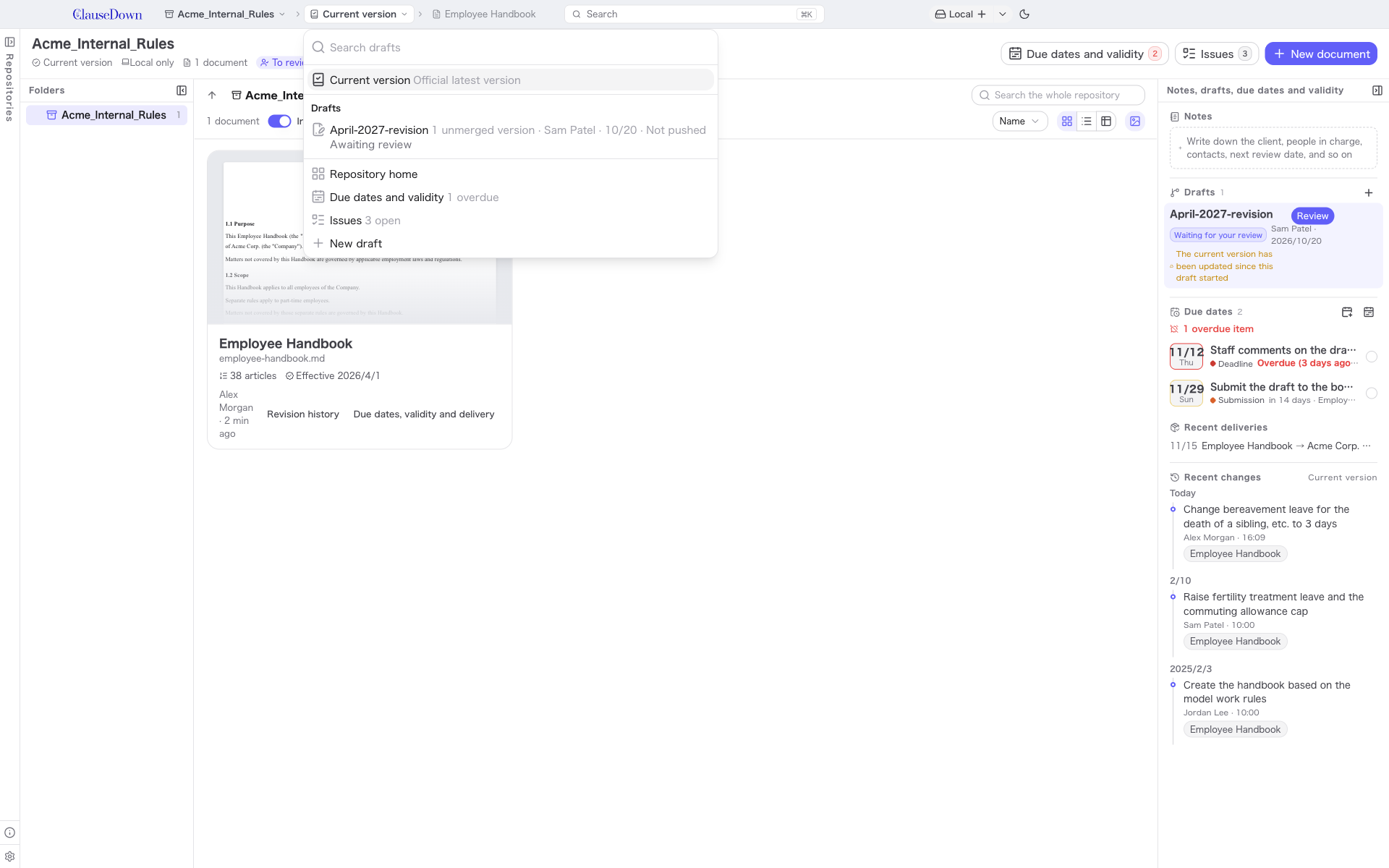
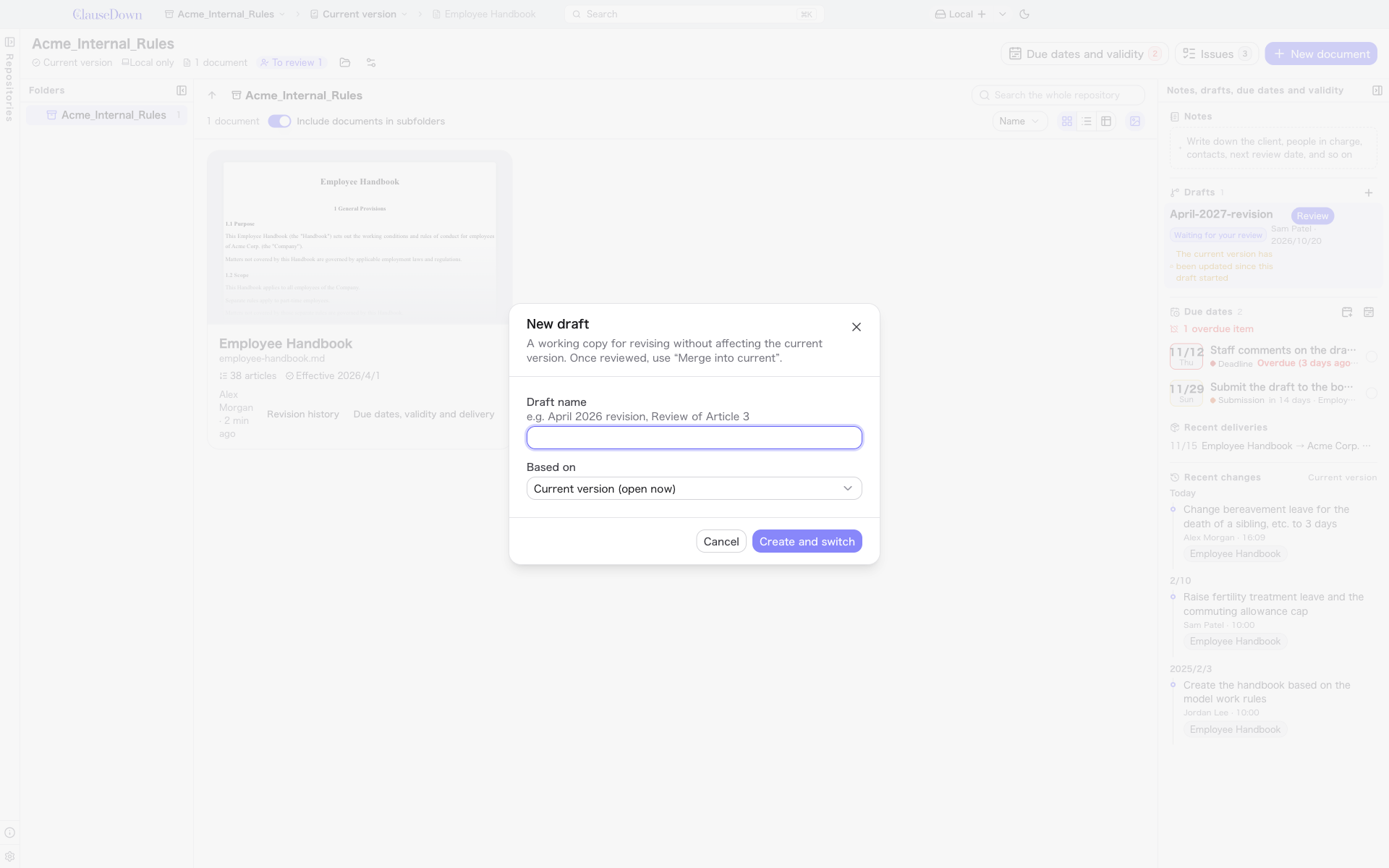
Click New draft, enter a Draft name (for example "April 2027 revision" or "Review of Article 3"), choose the version it is Based on, and click Create and switch. You can also create a draft by choosing Save as new draft when you save a version.
Working in a draft
When you switch to a draft, its name in the title bar turns brown. A bar at the top of the screen says you are working on the draft and that changes here do not affect the current version. What you write and the versions you save in this state are recorded only in the draft.
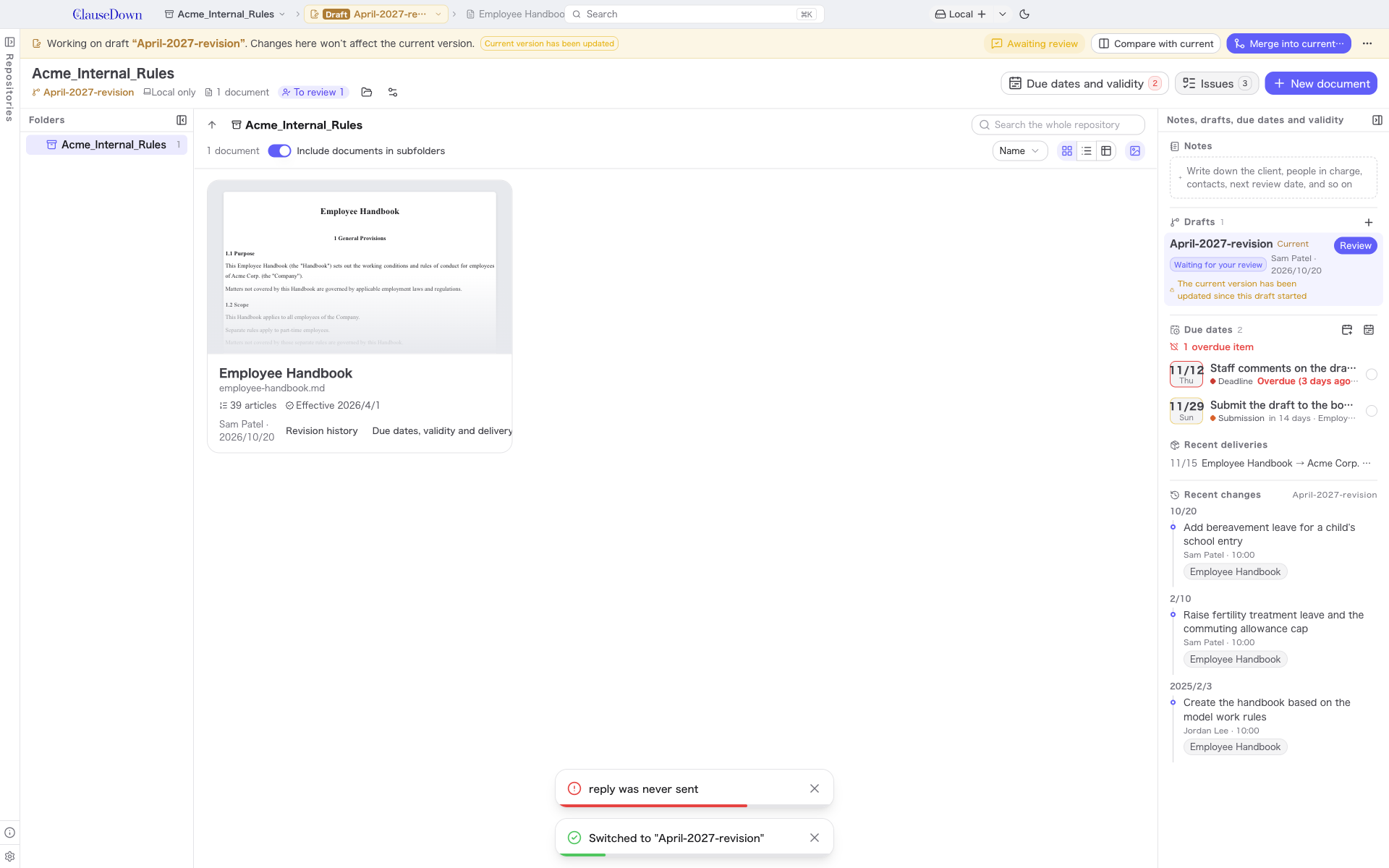
If the current version is updated after you created the draft, Current version has been updated appears. Use Bring in latest current version under "…" on the bar to bring those changes into your draft.
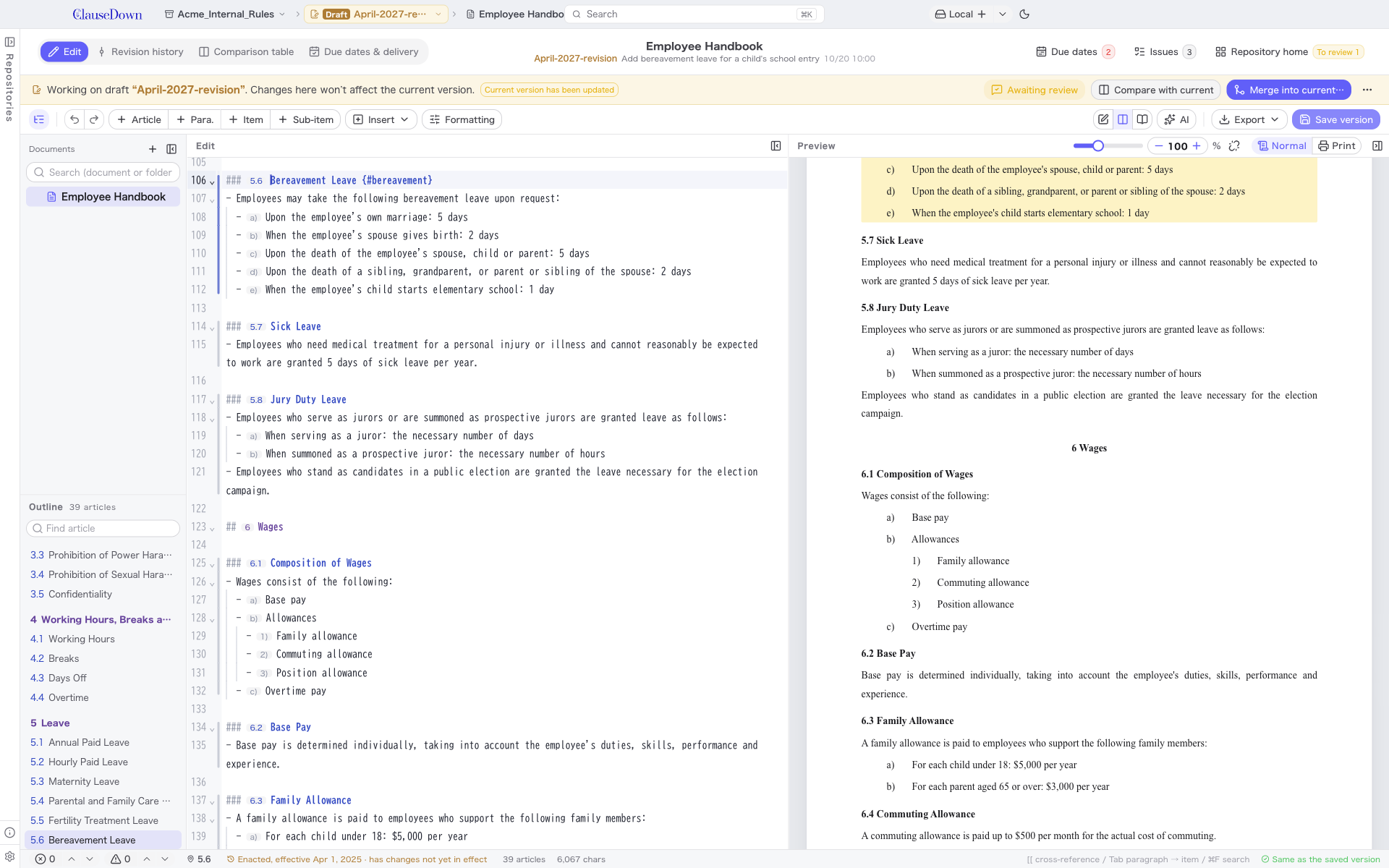
The buttons on the bar do the following.
- Request review (shows Awaiting review or similar depending on the review status): Opens the review request screen.
- Compare with current: Opens a comparison table against the current version.
- Merge into current: Puts the draft's contents into the current version.
Requesting and giving a review
The review request screen shows the request and its activity on the left, and a comparison table against the current version on the right.
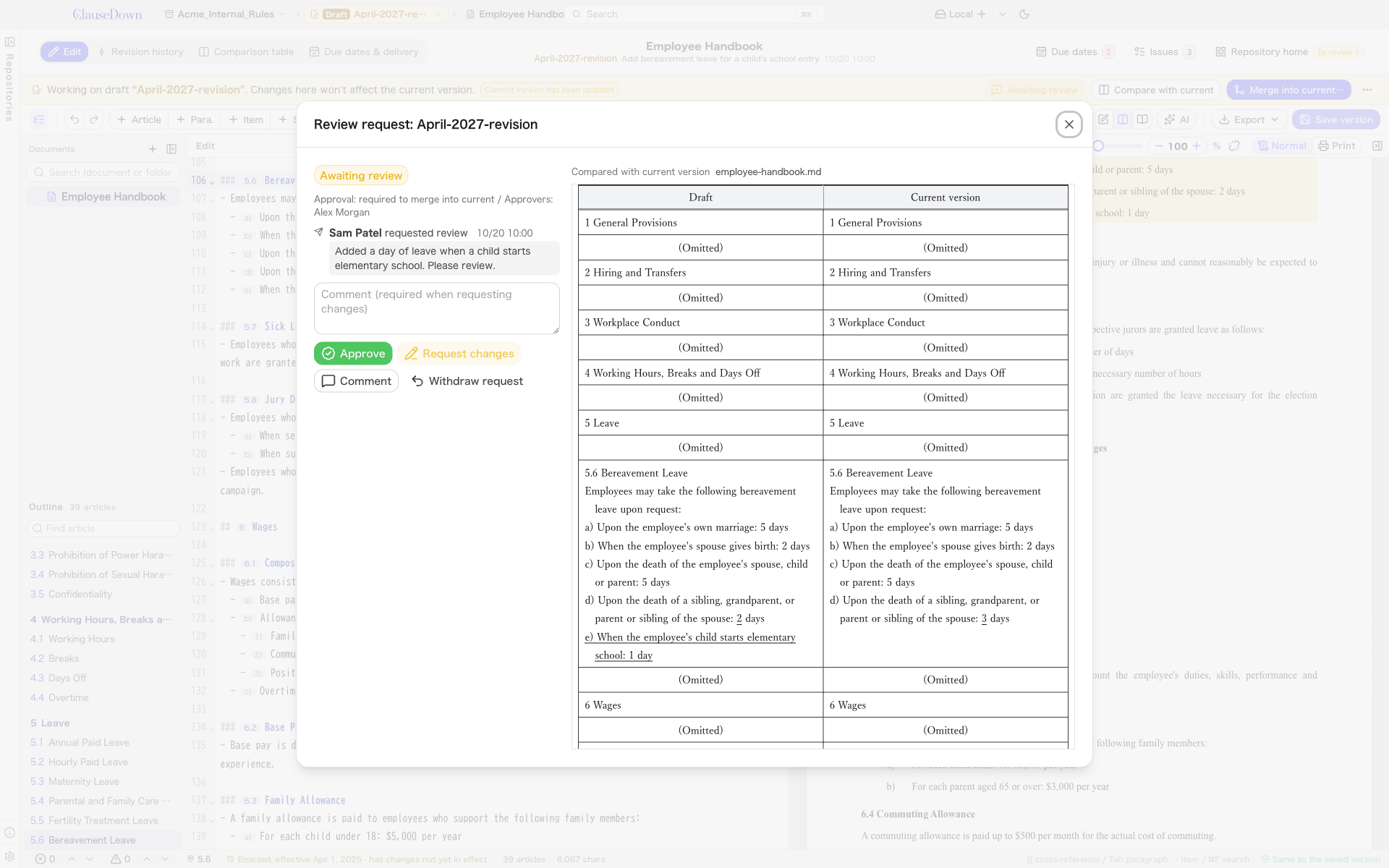
- The author of the draft clicks Request review to ask for a review.
- The reviewer looks at the contents and clicks Approve, Request changes or Comment. Request changes requires a comment.
- The requester can cancel the request with Withdraw request.
If the draft is changed after approval, the approval must be given again. If Who can approve is not set in the repository settings, anyone except the requester can approve; the requester cannot approve their own draft. Drafts you have been asked to review also appear under Waiting for your review on Home.
Signing approvals makes impersonated approvers and tampered records detectable. If Approvals required is set to 2 or more in repository settings, a draft cannot be merged until that many different approvers have approved it (chapter 19).
Merging into the current version
Click Merge into current to open the merge screen. If the repository settings require approval and the draft has not been approved, the process stops here and suggests Open review request.
The same document may have changed in the current version after you created the draft. In that case, changes in different places are both kept automatically. You only need to choose, one by one, the places where both sides changed the same text (conflicts). In the image below, the number of days in Article 30 was changed in the current version and an item was added to the same article in the draft, so there is one conflict.
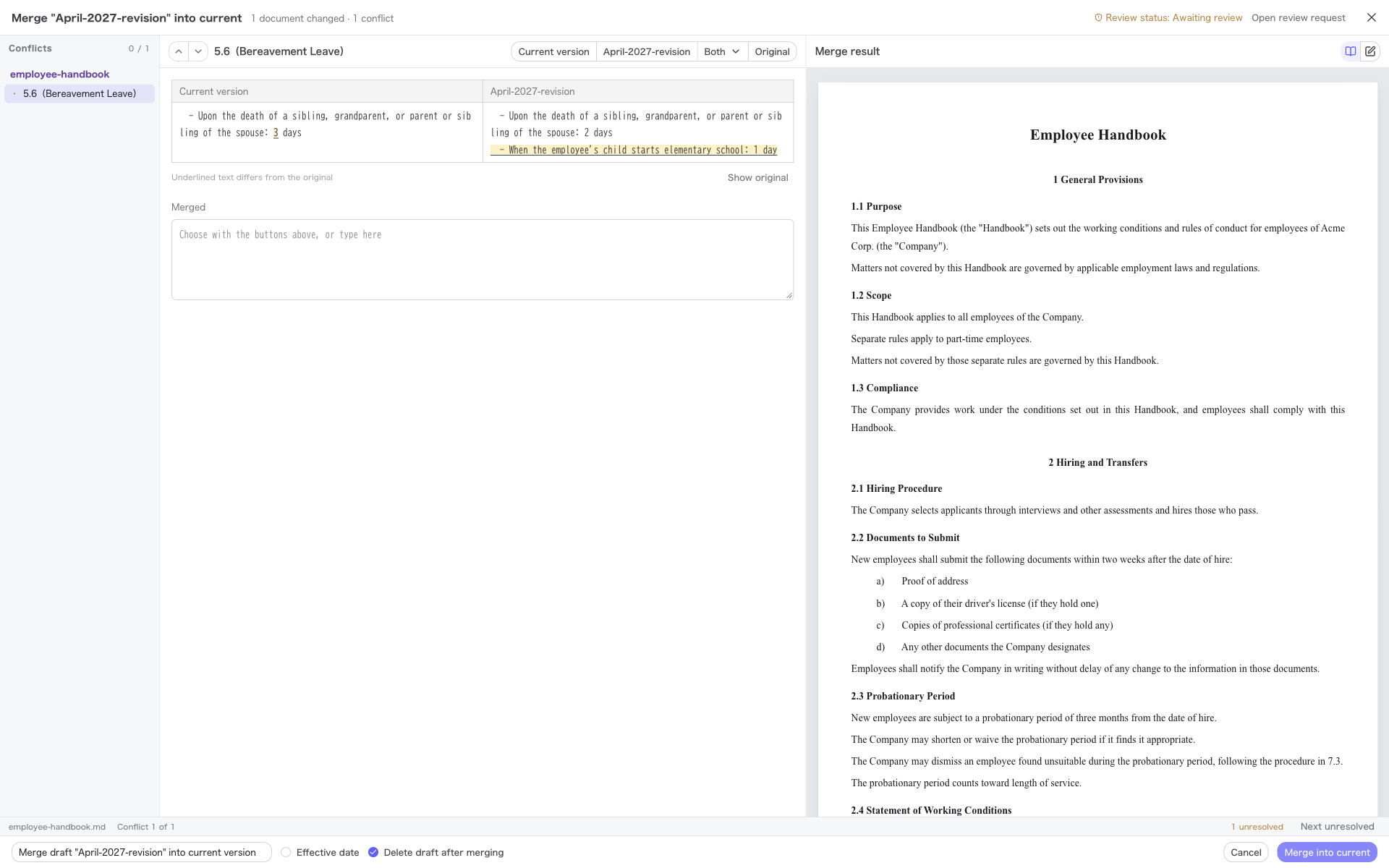
- The conflicts are listed on the left. Compare the current version's text and the draft's text in the table in the center.
- Use the buttons at the top to choose which to use (Current version, the draft's name, Both or Original). You can also type directly in the Merged field. The merged document is shown on the right.
- When you have resolved every conflict, check the version message, effective date and Delete draft after merging in the fields at the bottom, then click Merge into current.
You cannot merge while any conflict is unresolved. If you stop partway, the document stays as it was before the merge.