Chapter 3
Setting up a repository
Before you create documents, set up a repository to hold them. Click Add repository on Home, or + in the left pane, to open Repositories in Settings.
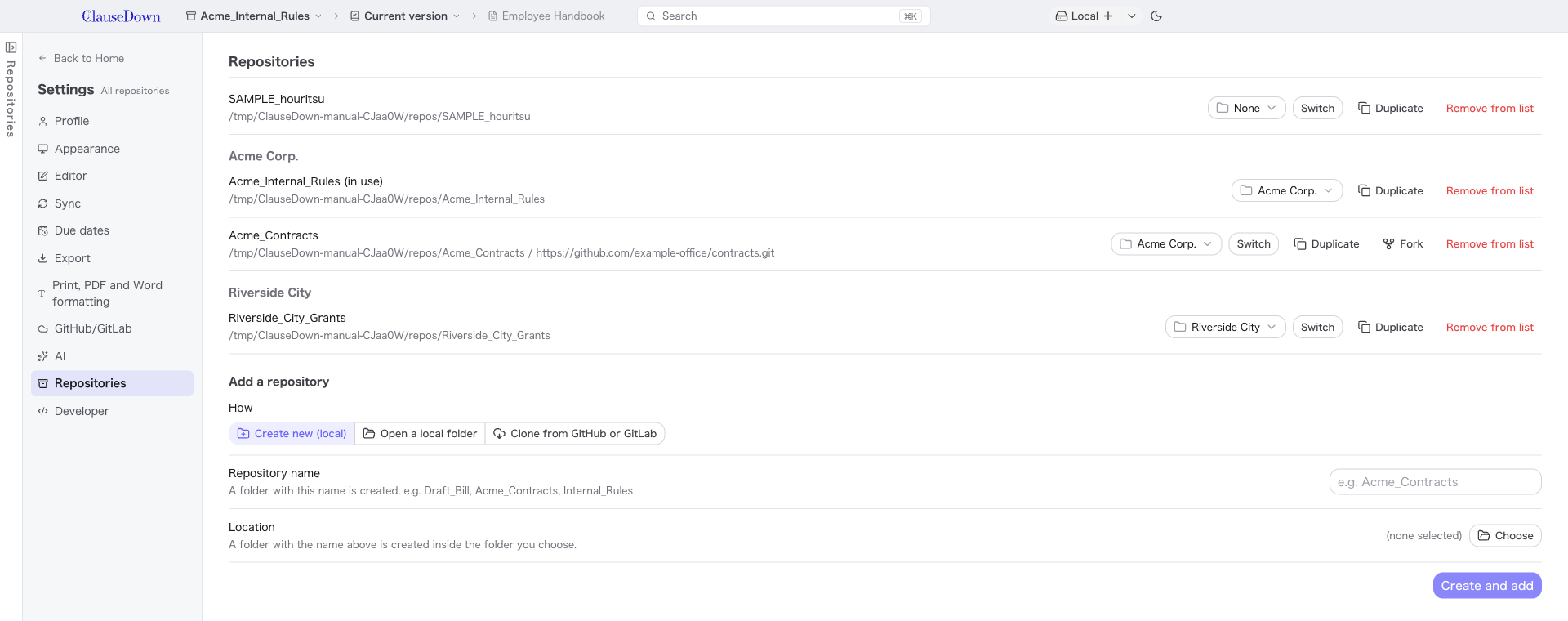
Under How, choose one of three options.
- Create new (local): Creates a new folder on your computer as an empty repository. Give it a name that shows the client and document type, such as "Acme_Contracts" or "CompanyB_Rules".
- Open a local folder: Adds a repository copied from another computer or one you created earlier. Hold Ctrl or Shift while selecting to add several at once.
- Clone from GitHub or GitLab: Copies a repository from a remote to your computer and adds it. Sign in under GitHub/GitLab in Settings first (chapter 14).
Remove from list only removes the repository from the app's list. The folder and its versions are not deleted.
Trying the sample repositories
In Settings, go to Developer, click Add sample repositories and choose a folder. The app creates the following four repositories and adds them to the list. Each has a version history, drafts, effective dates and due dates. The samples are Japanese documents, so their names are in Japanese.
| Repository | Contents |
|---|---|
| SAMPLE_見本株式会社_社内規程 | Work rules of a fictional company. Includes a draft with an open review request |
| SAMPLE_見本_契約書 | A services agreement and a copyright assignment agreement (contract style) |
| SAMPLE_見本市_条例・要綱 | A municipal ordinance on vacant houses and the guidelines for a subsidy |
| SAMPLE_houritsu_法令 | Three Japanese statutes in houritsu format. When you add it, you are asked whether to convert them (chapter 15) |
Duplicating a repository
Click Duplicate in the list to copy the repository, including its version history, to another folder and add it to the list. Use this when you want to start a repository for another client based on last year's set of rules.
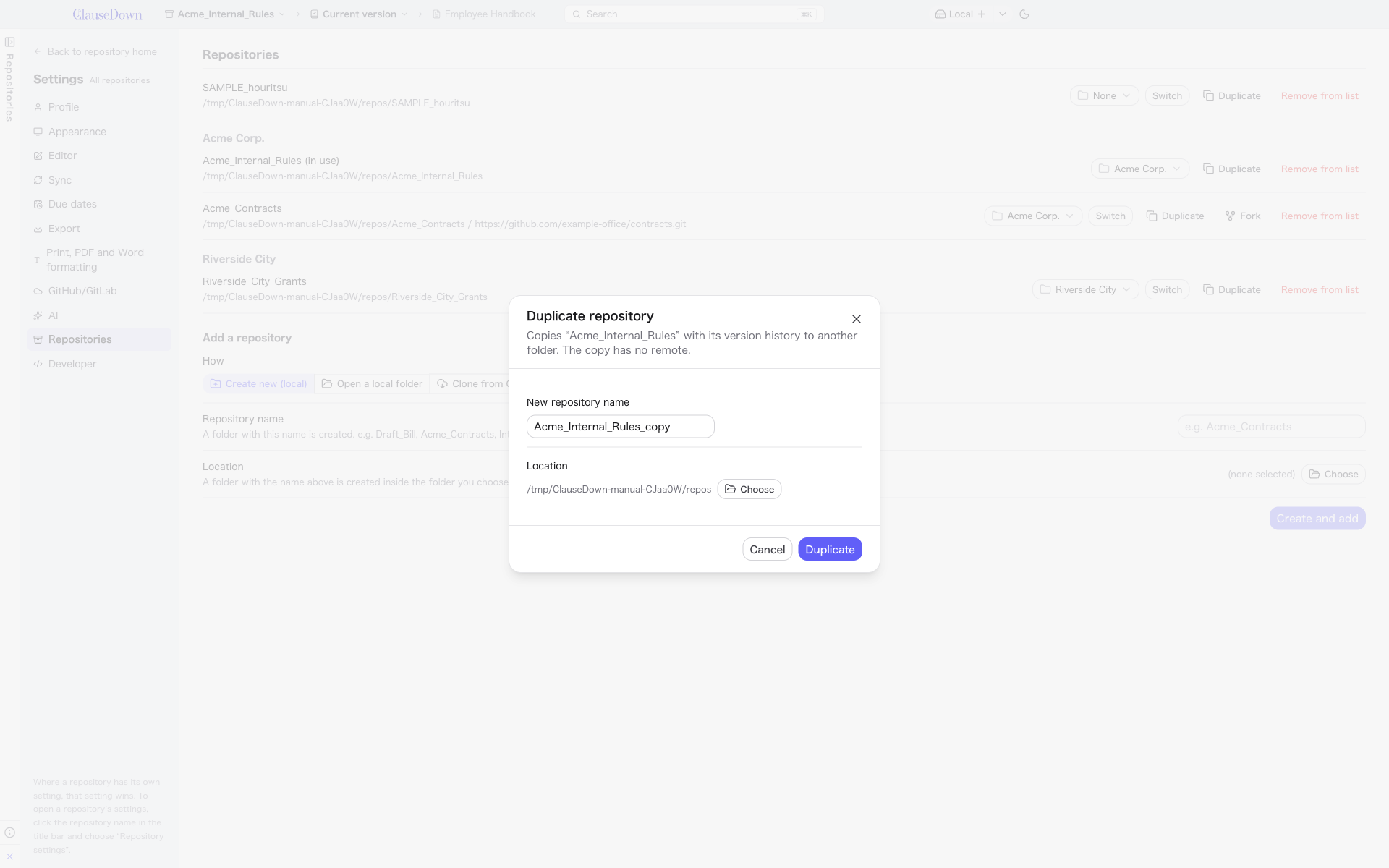
The copy has no remote. It is independent of the original: changing one does not change the other.
Forking a repository
Repositories whose remote is on GitHub or GitLab have a Fork button. Click it to create a copy (a fork) of that repository in your GitHub or GitLab account. The local repository is then set to push to your fork.
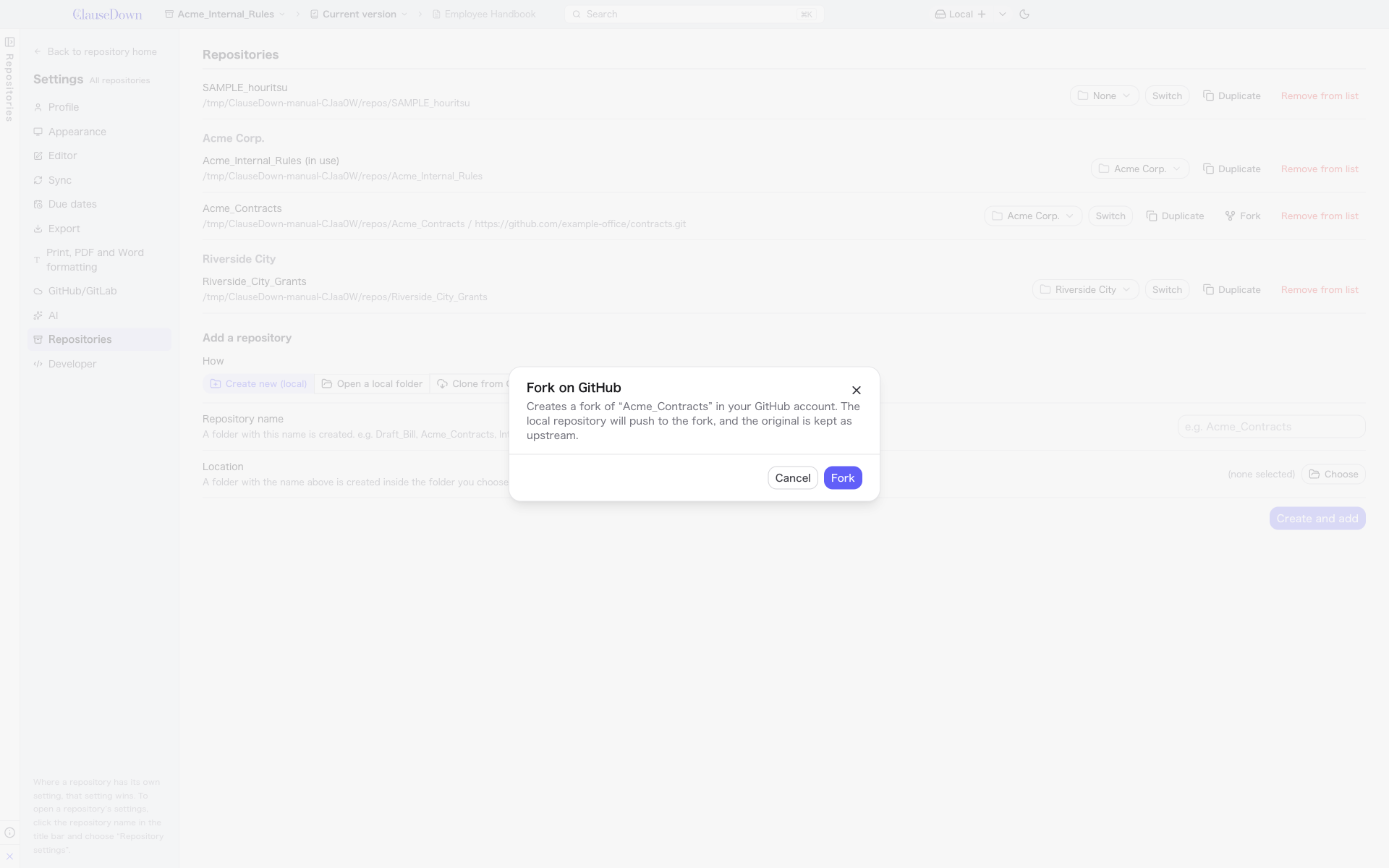
Use this when you have cloned a template repository someone else has published but do not have permission to push to it. The original repository is kept under the name "upstream". Unlike a duplicate, a fork keeps its link to the original repository on GitHub or GitLab.
Switching repositories
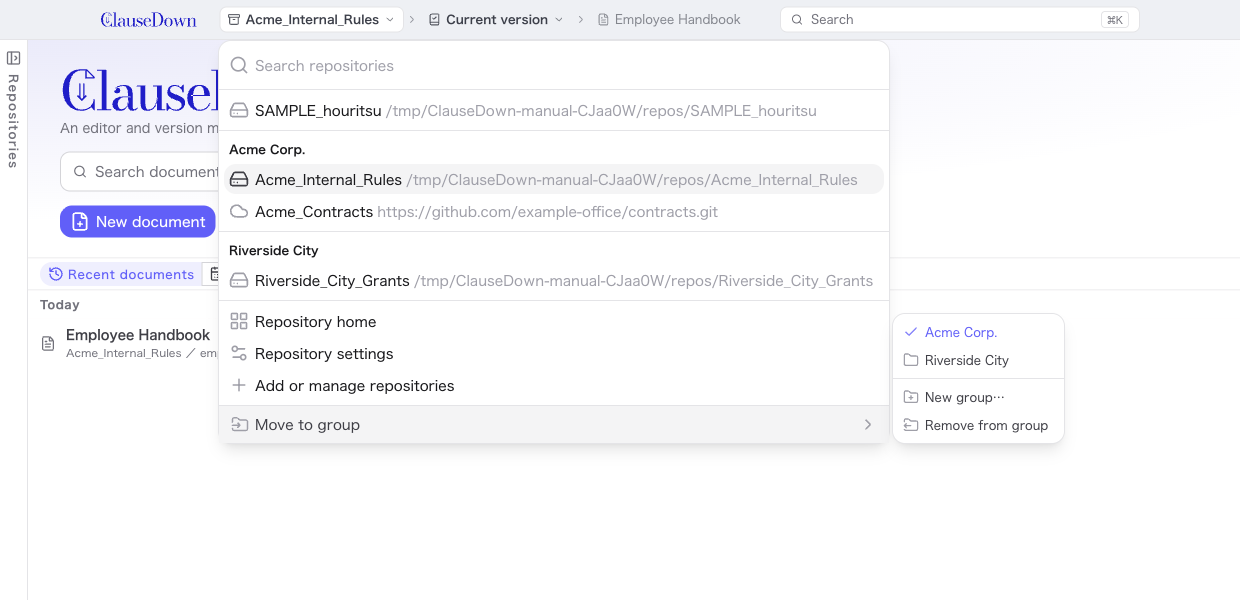
Click the repository name in the title bar to open the list of your repositories. You can also switch by clicking a name in the left pane.
Grouping repositories
You can group repositories under a heading such as "Company A". Groups only affect how the list looks; folders and repository contents do not change.
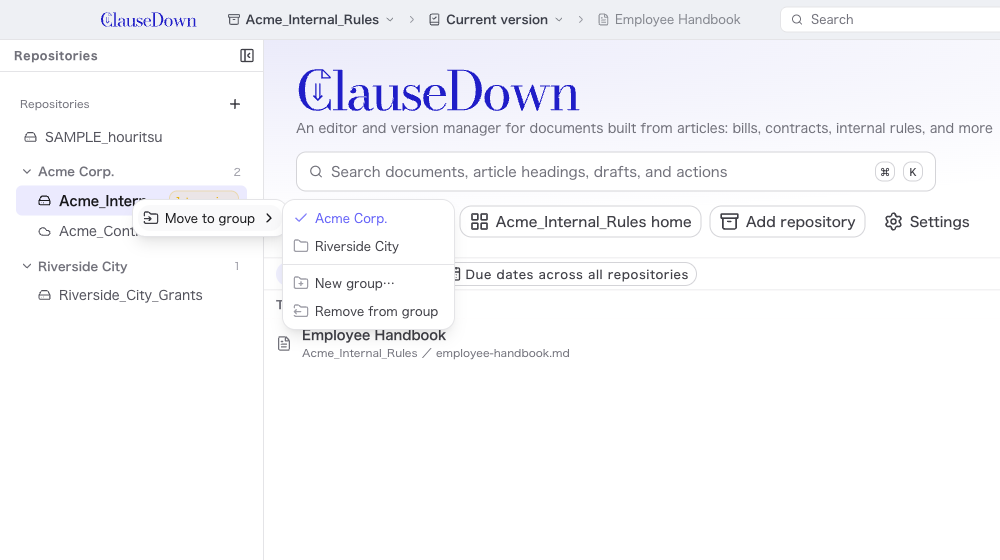
- Adding to or moving between groups: Use any of the following.
- Right-click a repository in the left pane and choose a group from Move to group.
- Click the repository name in the title bar and choose from Move to group at the bottom of the list. This applies to the repository that is currently open.
- In Repositories in Settings, choose from the group field on each row.
- Choose New group…, or type a new name in the field in Settings, to create a group and move the repository into it.
- Dragging: In the left pane, drag a repository onto a group heading to move it to the end of that group, or onto another repository to place it before that one. Drop it on the Repositories heading to remove it from its group.
- Headings: Click to expand or collapse. When a group is collapsed, the repository that is currently open stays visible. Right-click a heading to choose Rename… or Ungroup.
Repositories that are not in a group appear at the top of the list as before. Groups appear the same way in the left pane, the list in the title bar, Repositories on Home and Repositories in Settings.