Chapter 8
Viewing past versions in the revision history
Click the Revision history tab to see the list of versions of the document.
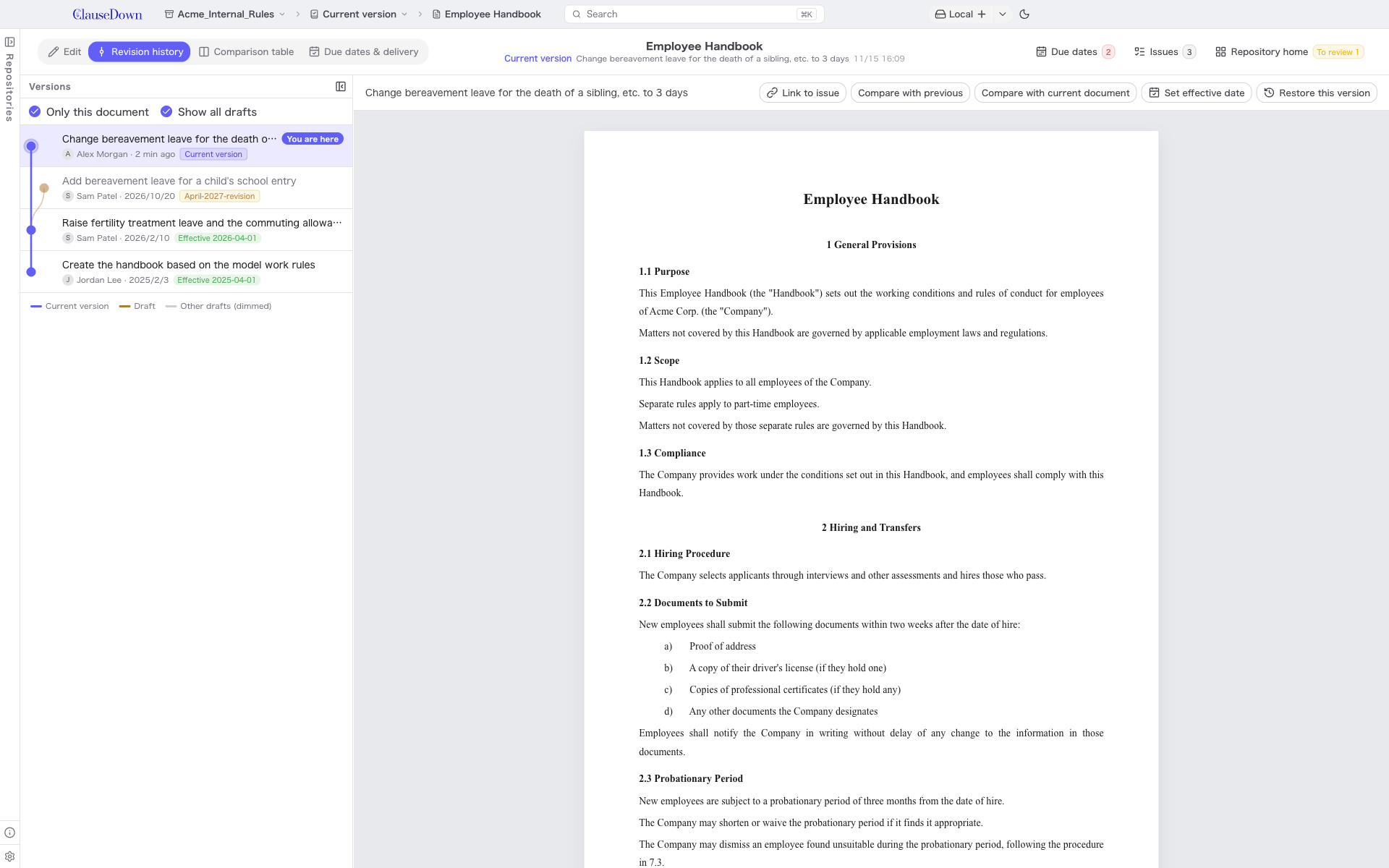
- The newest version is at the top of the list on the left. The line color distinguishes versions in the current version (blue) from versions in drafts (brown). Versions with a recorded effective date are marked, for example "Effective 2026-04-01".
- Turn on Only this document to show only versions that changed this document. Turn off Show all drafts to hide versions in drafts.
- Click a version to see its text on the right. The buttons at the top right let you:
- Compare with previous, Compare with current document: Compare on the comparison table screen.
- Set effective date: Make this version an effective version (chapter 11).
- Restore this version: Return the document's contents to this version. The restored contents are treated as unsaved changes until you save a version.