Chapter 11
Recording effective dates and delivering
Setting an effective date
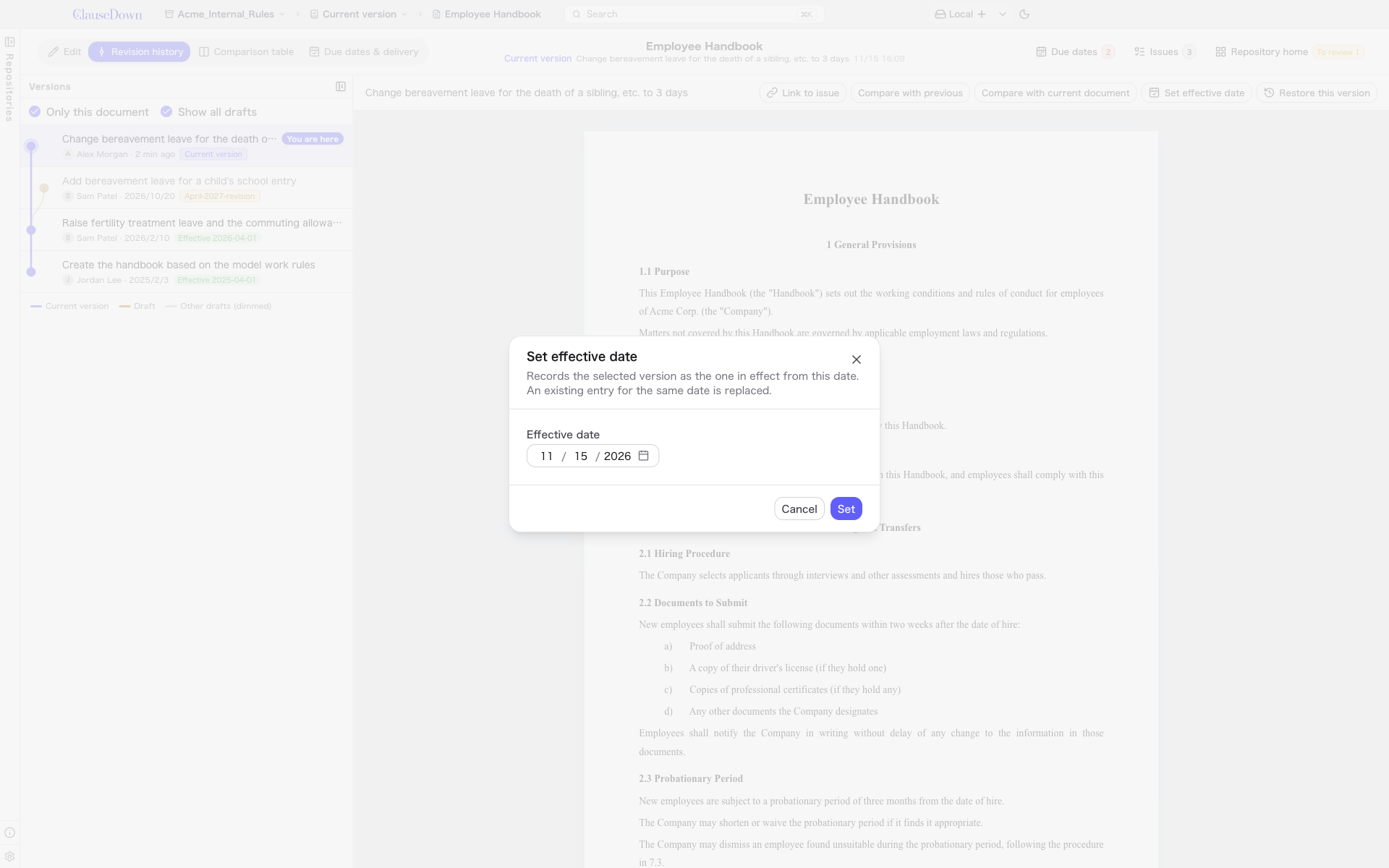
You can set an effective date with Record effective date when you save a version, or later by choosing a version in the revision history and clicking Set effective date. If an effective date with the same date already exists, it is moved to the newly chosen version.
The due dates and delivery tab
The document's Due dates & delivery tab shows the document's due dates, effective versions and delivery records together.
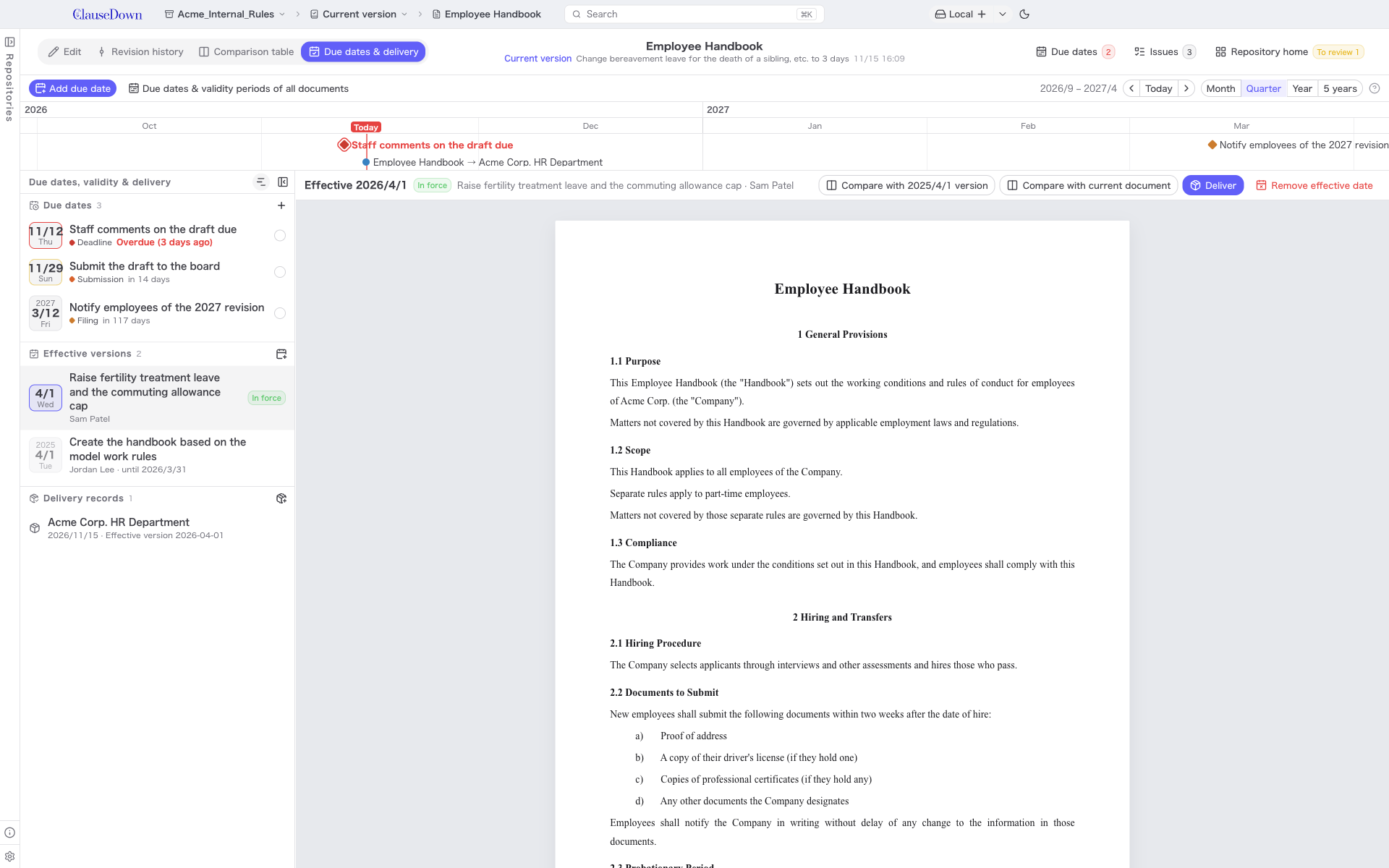
- At the top is a timeline for this document only. Use Add due date to record a due date for this document. The validity period of each effective version is shown as a band below the row.
- The list on the left has three sections: Due dates, Effective versions and Delivery records. The version in force today is labeled In force. Effective versions that have a later version show the last day they are in force ("until …").
- Choose an effective version to see its text on the right. There are buttons to open a comparison table against the previous effective version or the current document, and Deliver and Remove effective date buttons. Remove effective date removes only the effective date record; the version itself is kept.
Delivering
Choose an effective version and click Deliver.
- Under Recipient, enter who you are delivering to, for example "Legal Dept., Company A".
- Under Comparison base (before), choose the effective version to compare from.
- Under Items to deliver, choose whether to include the document itself and the comparison table as PDF or Word.
- Click Choose folder and create and choose a folder. Inside it, the app creates a folder named with the date, folder name and document title (for example "20261107_就業規則_納品") and places the chosen files in it.
The delivery is recorded in Delivery records. If the remote is on GitHub or GitLab, you can also attach the deliverables to a release on the remote.
If a PDF signing certificate is registered under Digital signatures in Settings, Sign digitally in the delivery dialog adds a digital signature to the delivered PDFs. With two or more certificates, choose which one next to it (chapter 19). When the other party signs and returns a PDF, Save the signed PDF you received in the delivery record saves it to the delivery folder and adds it to the record (chapter 19).