Chapter 14
Sharing with other computers and other people
With a remote (GitHub or GitLab), several computers in your organization and other people can use the same repository. Repositories without a remote are managed only on your computer.
Connecting to GitHub.com
On GitHub, first install the ClauseDown GitHub App on the repositories you will use, then sign in from the app. You install it only once per account (or organization).
Installing on repositories
-
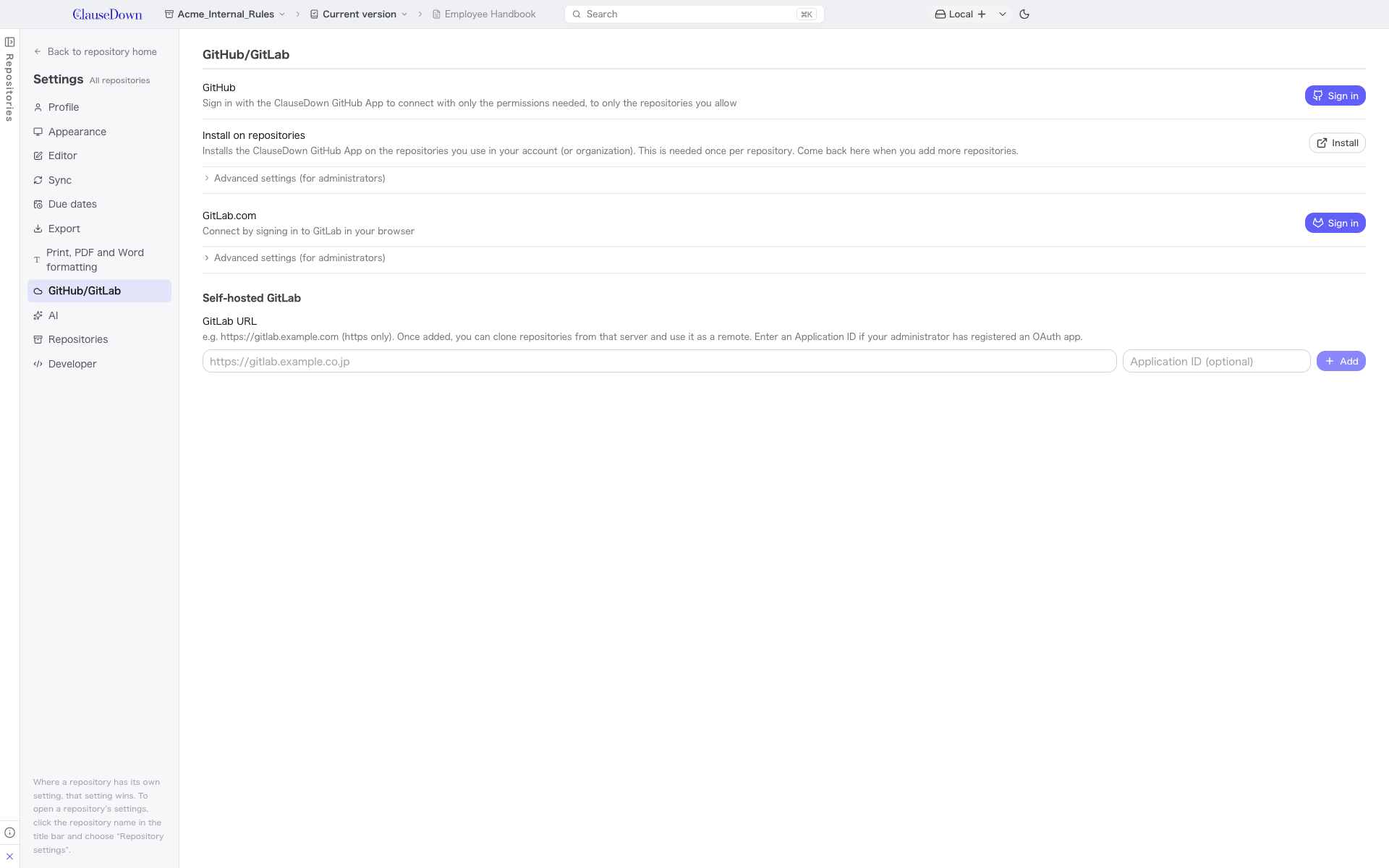
Under GitHub/GitLab in Settings, click Install for GitHub. The ClauseDown GitHub App page opens in your browser.
-
Click "Install". If it is already installed, the button says "Configure"; click it to change where it is installed.
-
Choose the account or organization to install it on and click "Continue".
-
Under "Repository access", choose "Only select repositories", then under "Select repositories" choose only the repositories you will use with ClauseDown. When done, click "Install" (or "Save" if you are changing the settings).
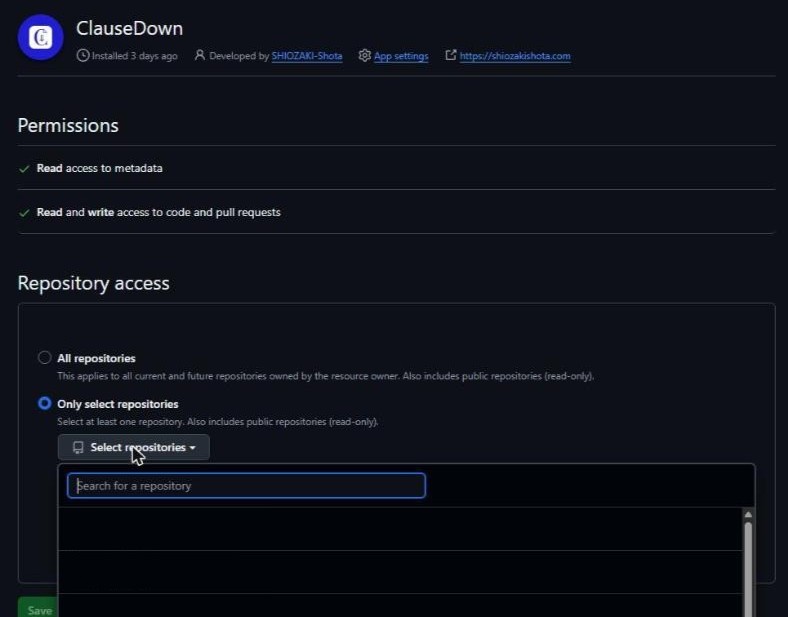
To add more repositories later, use the same Install button and choose again.
Signing in from the app
-
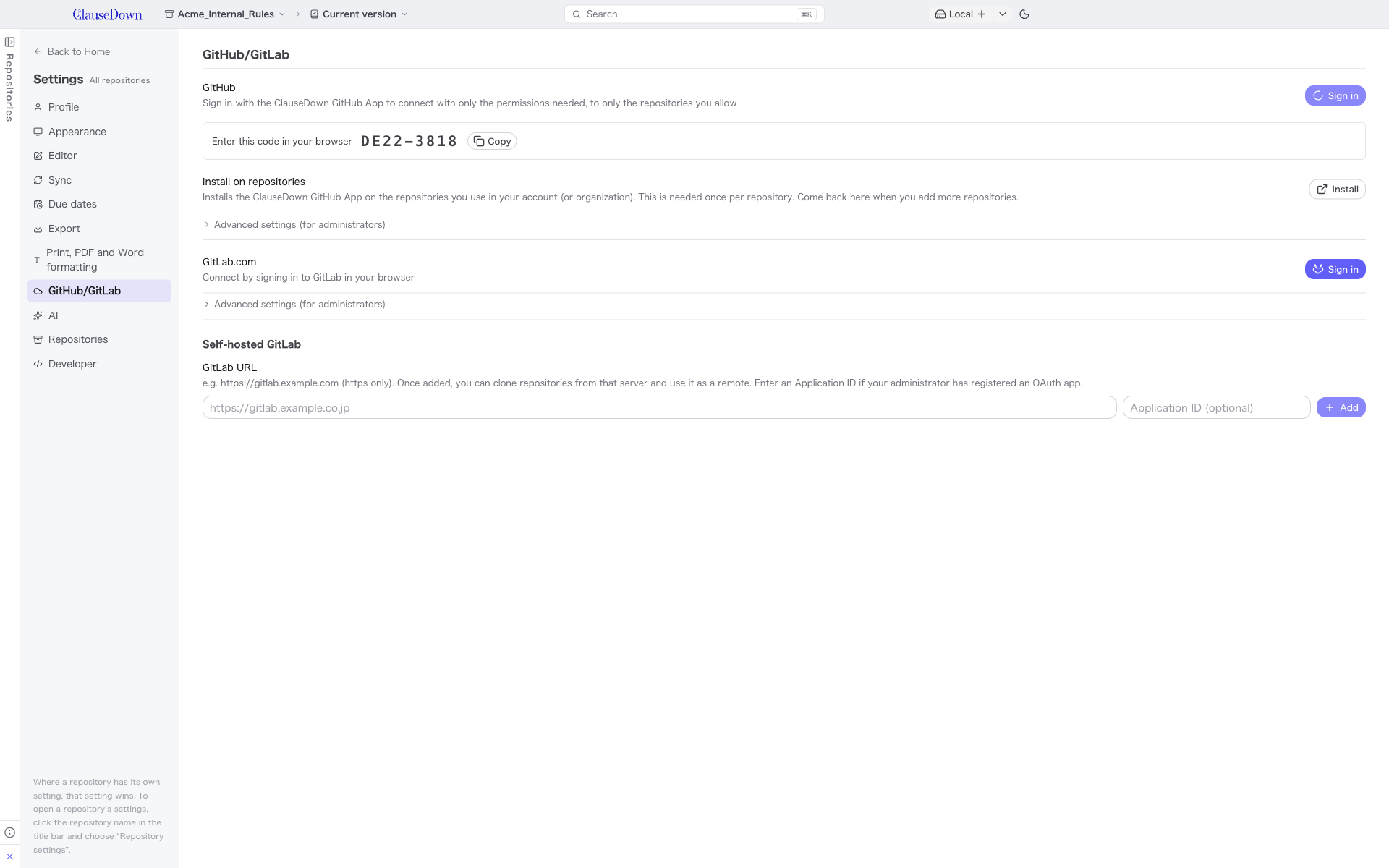
Under GitHub/GitLab in Settings, click Sign in for GitHub. A code appears in the app and a GitHub page opens in your browser.
-
Click Copy in the app to copy the code.
-
In the browser, choose your account and click "Continue", paste the code and click "Continue".
-
Click "Authorize ClauseDown".
-
Back in the app, the GitHub section shows the name of the account you signed in with.
The code expires after 15 minutes. If it expires, click Sign in again.
Connecting to GitLab.com
-
Under GitHub/GitLab in Settings, click Sign in for GitLab.com. A code appears in the app and a GitLab page opens in your browser.
-
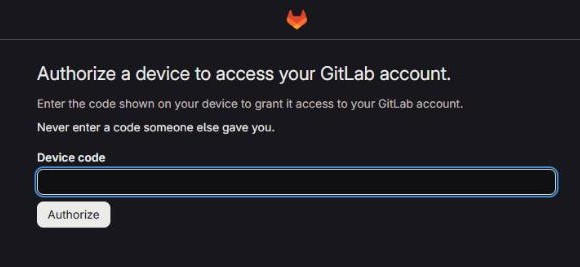
Click Copy in the app to copy the code, paste it into "Device code" in the browser and click "Authorize".
-
On the authorization screen, click "Authorize" again.
-
Back in the app, the GitLab.com section shows the name of the account you signed in with.
Unlike GitHub, GitLab has no way to choose only certain repositories. ClauseDown can connect to every project the signed-in account can access.
Connecting to your company's GitLab
If your organization hosts its own GitLab, enter its URL in the company GitLab field under GitHub/GitLab in Settings and add it. Ask your GitLab administrator how to sign in.
Pushing a repository to a remote
For a repository without a remote, the sync button on the right of the title bar shows Local. Choose Add remote… from + or from ▾ on its right.
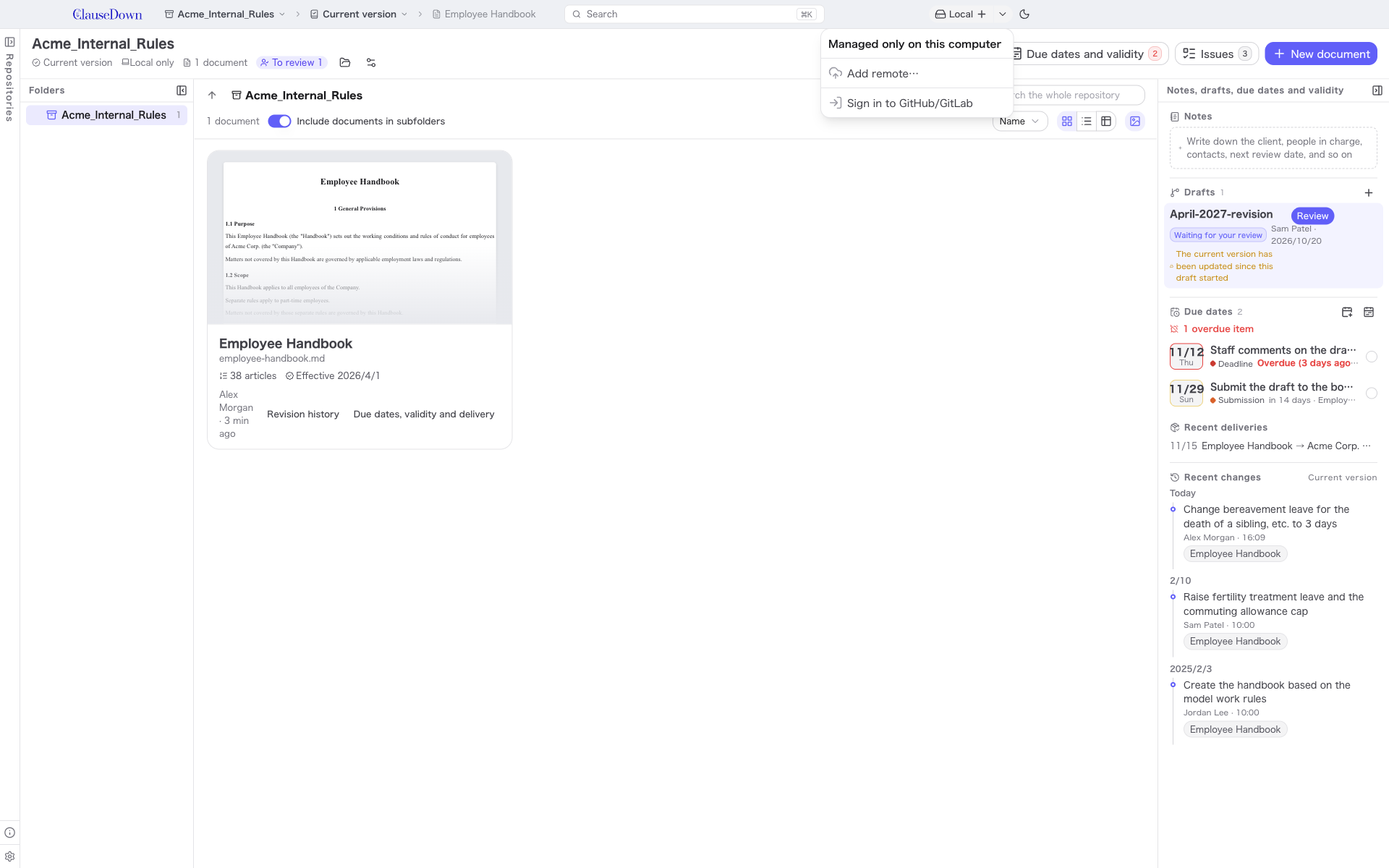
Follow the steps on the screen that opens.
-
Choose where to host the remote (GitHub.com, GitLab.com or a company GitLab you have added).
-
If you are not signed in yet, sign in with Open sign-in settings.
-
Click Create on GitHub (Create on GitLab for GitLab) and create an empty repository in your browser.
-
On GitHub, choose "Private", do not add "Add README", "Add .gitignore" or "Add license", and click "Create repository".
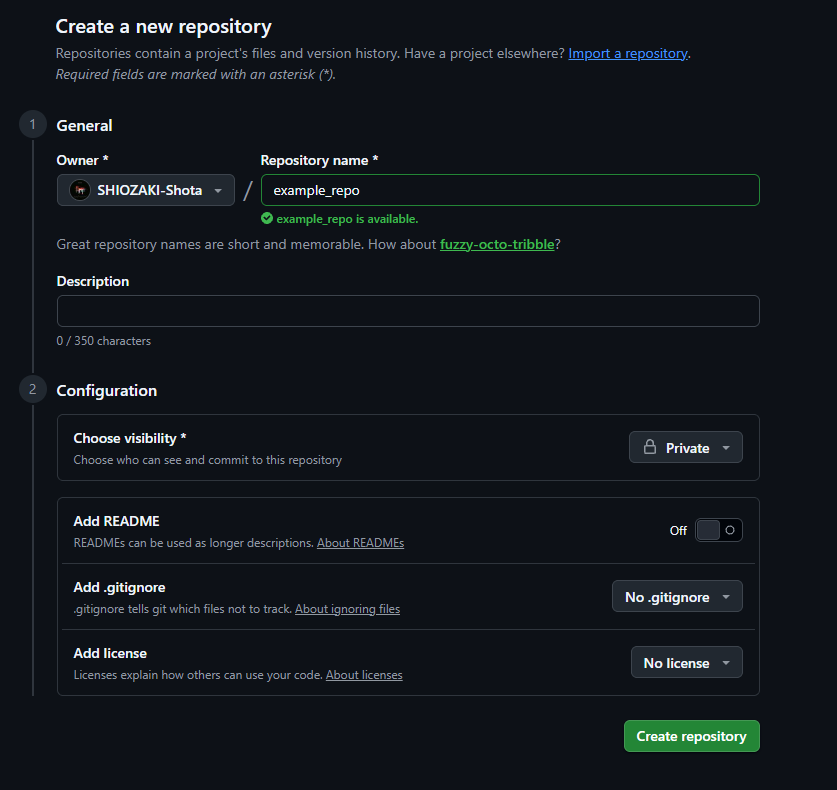
-
On GitLab, choose "Private", uncheck "Initialize repository with a README" and click "Create project".
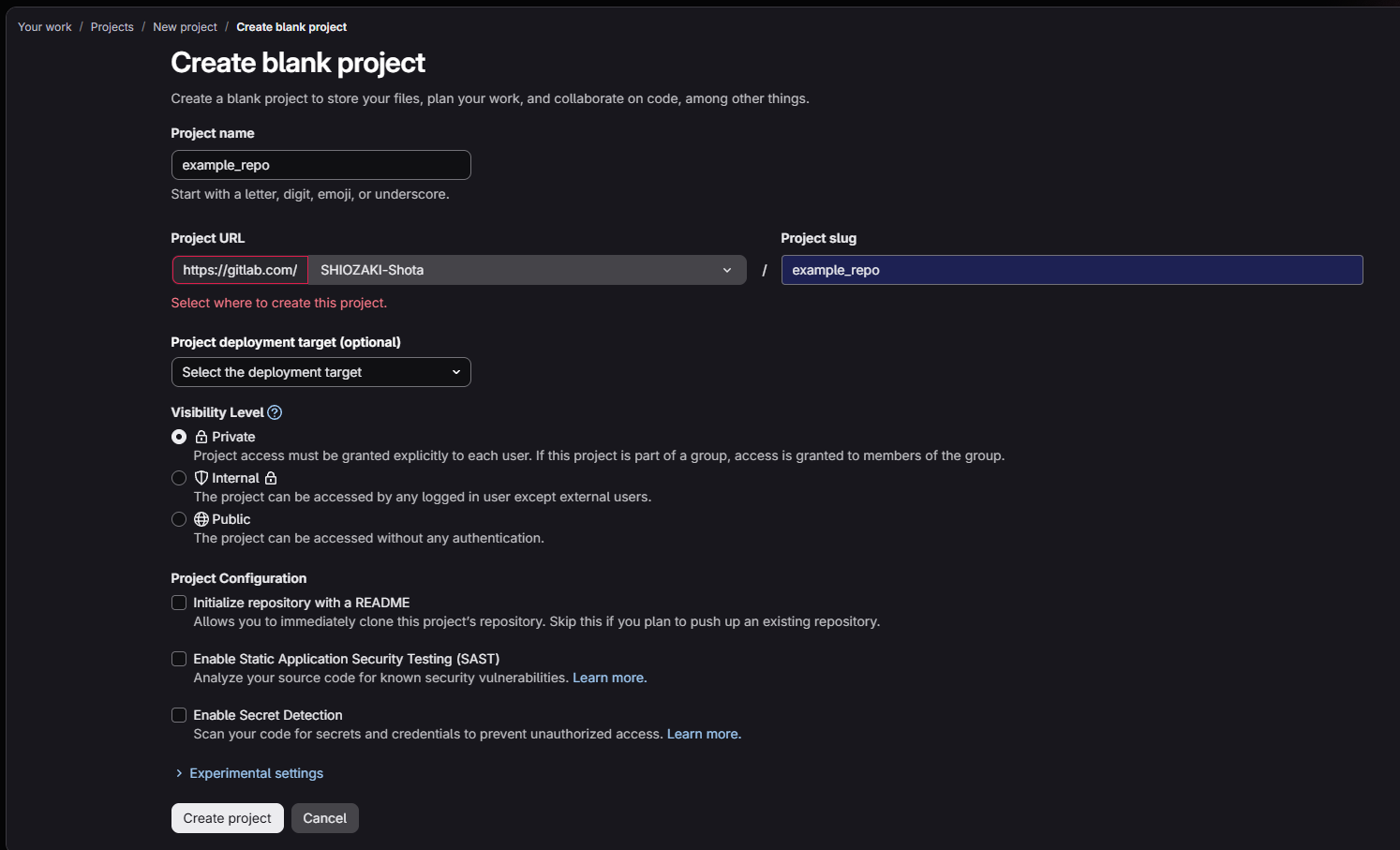
-
-
On GitHub, use Open app settings to add the repository you created to the repositories where the ClauseDown GitHub App is installed.
-
Copy the URL of the repository you created, paste it, and click Push to remote.
-
On GitHub, copy the HTTPS URL under "Quick setup" on the page shown right after creating the repository.
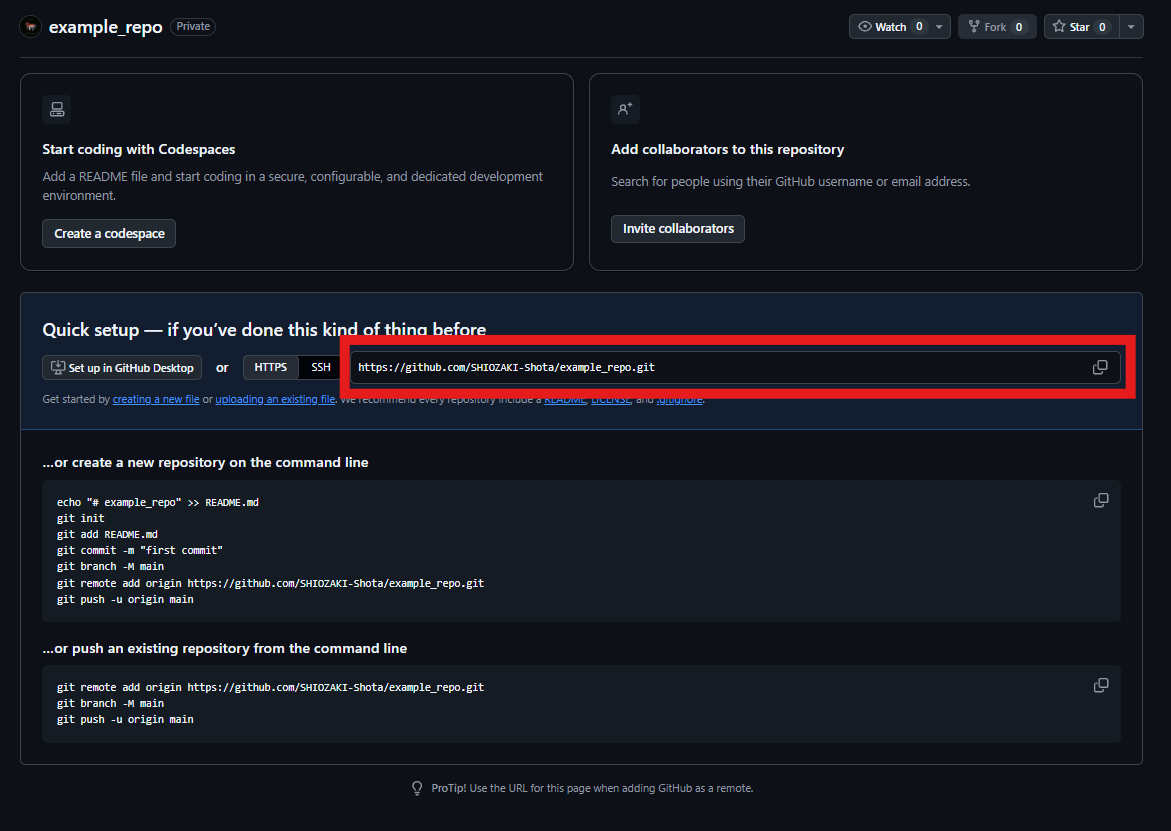
-
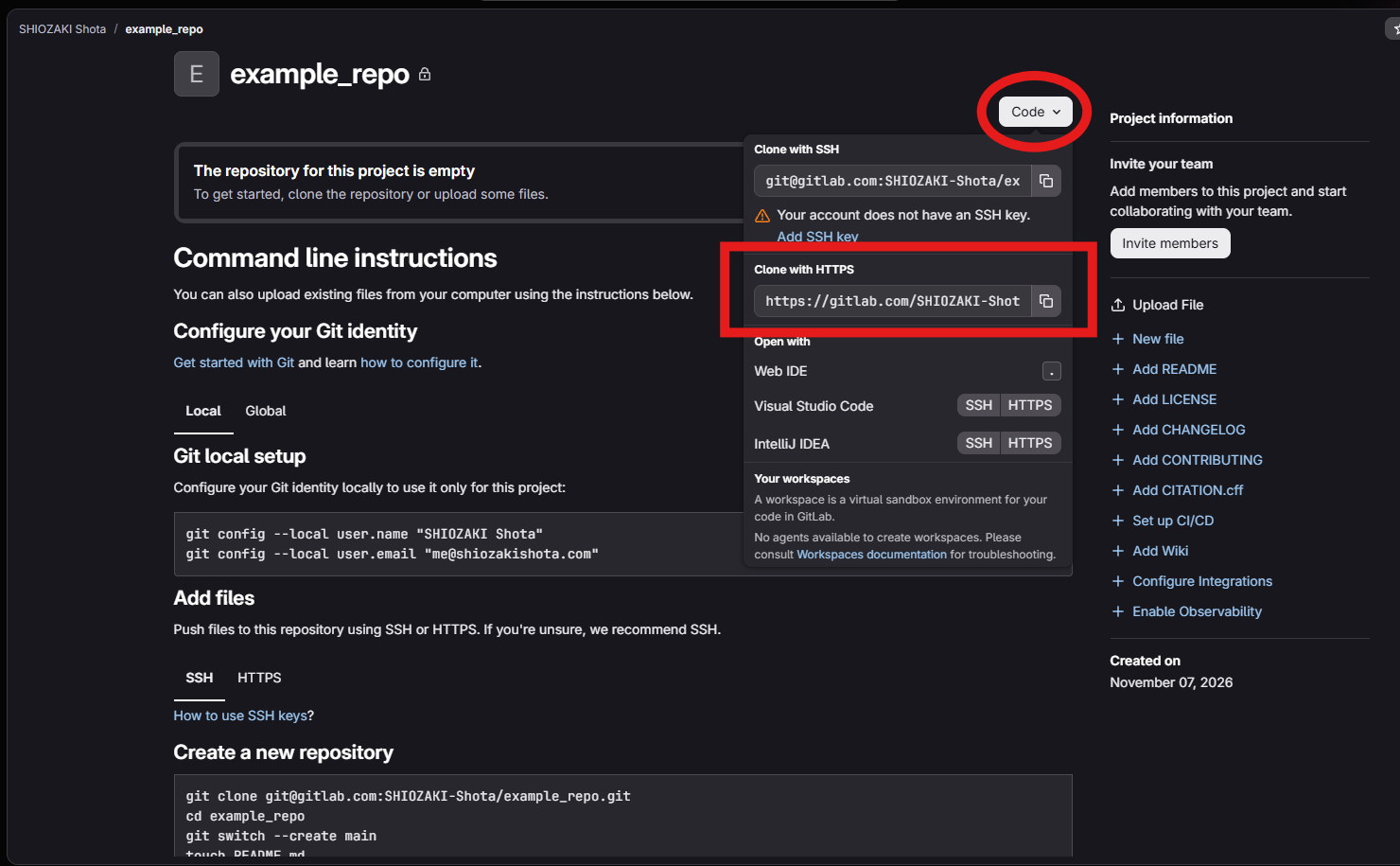
On GitLab, click "Code" and copy the URL under "Clone with HTTPS".
-
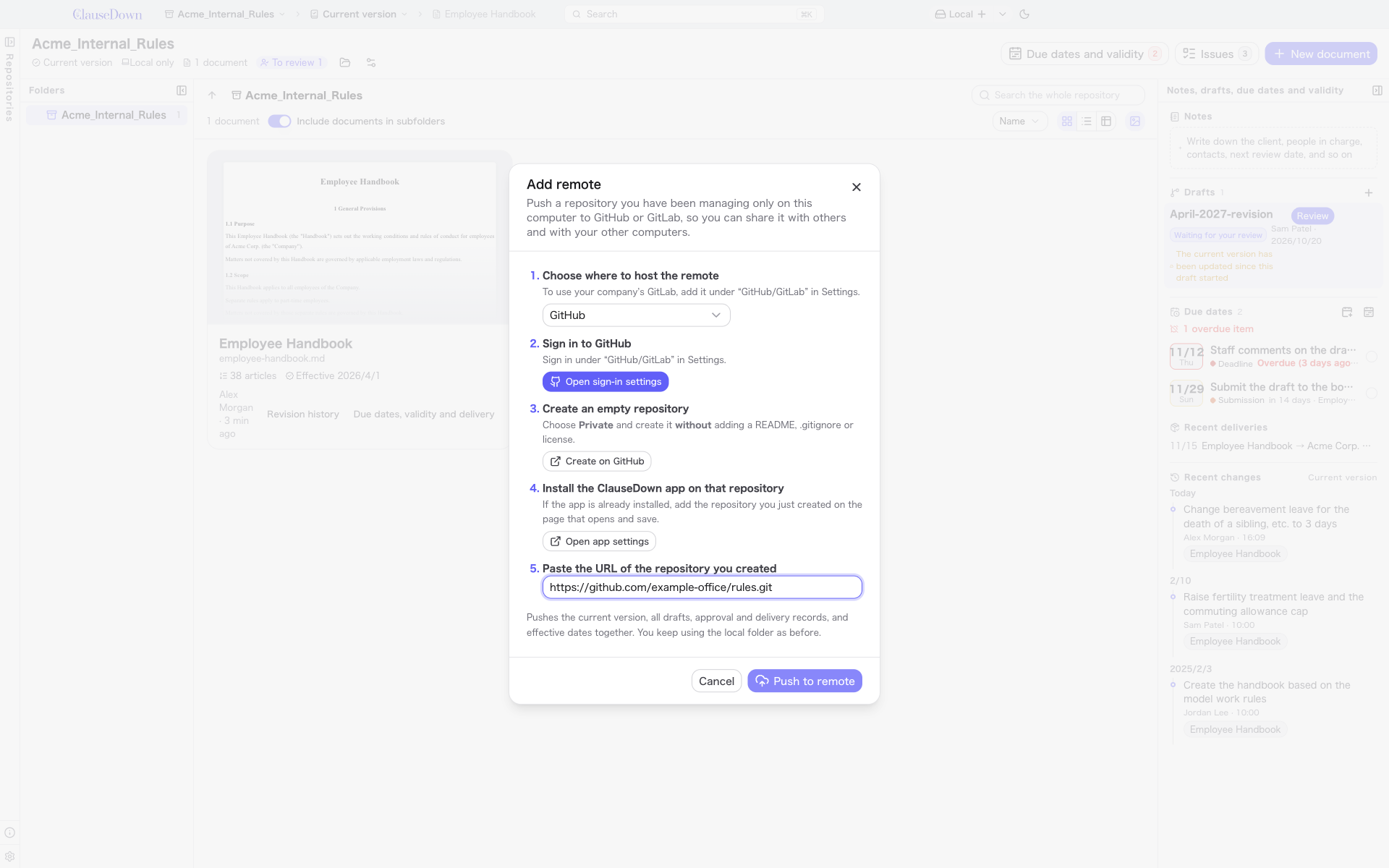
The current version, drafts and all records are pushed, and from then on the repository syncs with that remote.
Syncing
In a repository with a remote, the sync button shows the current state. If there are versions not yet pushed, it shows the count, for example "2 to push". If you have unsaved changes and the remote's versions cannot be fetched, it shows Can’t pull. Click the button to fetch versions from the remote and push your local versions. If you click it while a sync is running, a second sync does not start; it waits for the running one to finish. Under Sync in Settings, choose whether to sync on startup and whether to push when you save a version.
If the same place was changed on two computers, the sync button shows Conflicts. Click it to resolve each conflict on the same screen used for merging into the current version (chapter 10). Due dates, review requests and delivery records are all kept even if they were added on two computers at the same time.