Chapter 2
Starting the app and the screen layout
When you start the app, a logo animation plays and then Home opens. Click anywhere or press any key to skip the animation. It does not play if animation effects are turned off in your OS settings.
Installing
Download the app from the official website, or install it with one of these commands.
| OS | Method | Command |
|---|---|---|
| Windows | PowerShell | irm https://clausedown.app/install.ps1 | iex |
| Windows | winget | winget install ShiozakiShota.ClauseDown |
| macOS (Apple silicon) | Terminal | curl -fsSL https://clausedown.app/install.sh | sh |
| macOS (Apple silicon) | Homebrew | brew install --cask shiozaki-shota/tap/clausedown |
- On Windows, you can also use the same curl command as macOS in Git Bash.
- If you install from a downloaded file, the OS shows a warning the first time because the app is not signed. On Windows, click "More info" and then "Run anyway". On macOS, open "System Settings" → "Privacy & Security" and click "Open Anyway". No warning appears when you install with a command.
The first time you start the app
If you have not added a repository yet, Home shows two steps under Getting started. Click Set up to go to the settings screen for that step.
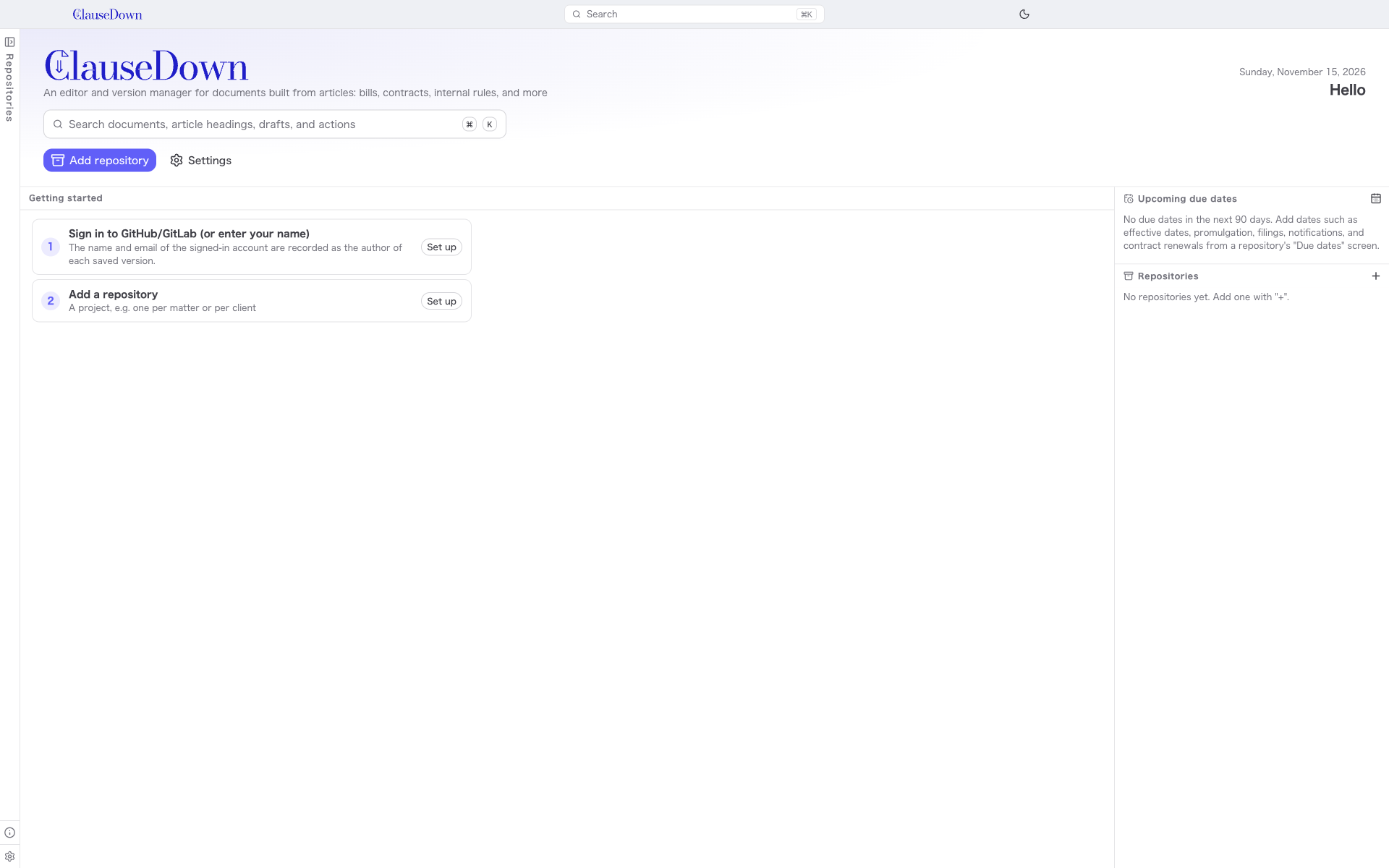
- Sign in to GitHub/GitLab (or enter your name): Choose the name that is recorded as the person who saved each version (chapter 17).
- Add a repository: Create or add a repository for your documents (chapter 3). To try the app first, go to Developer in Settings and click Add sample repositories.
Home
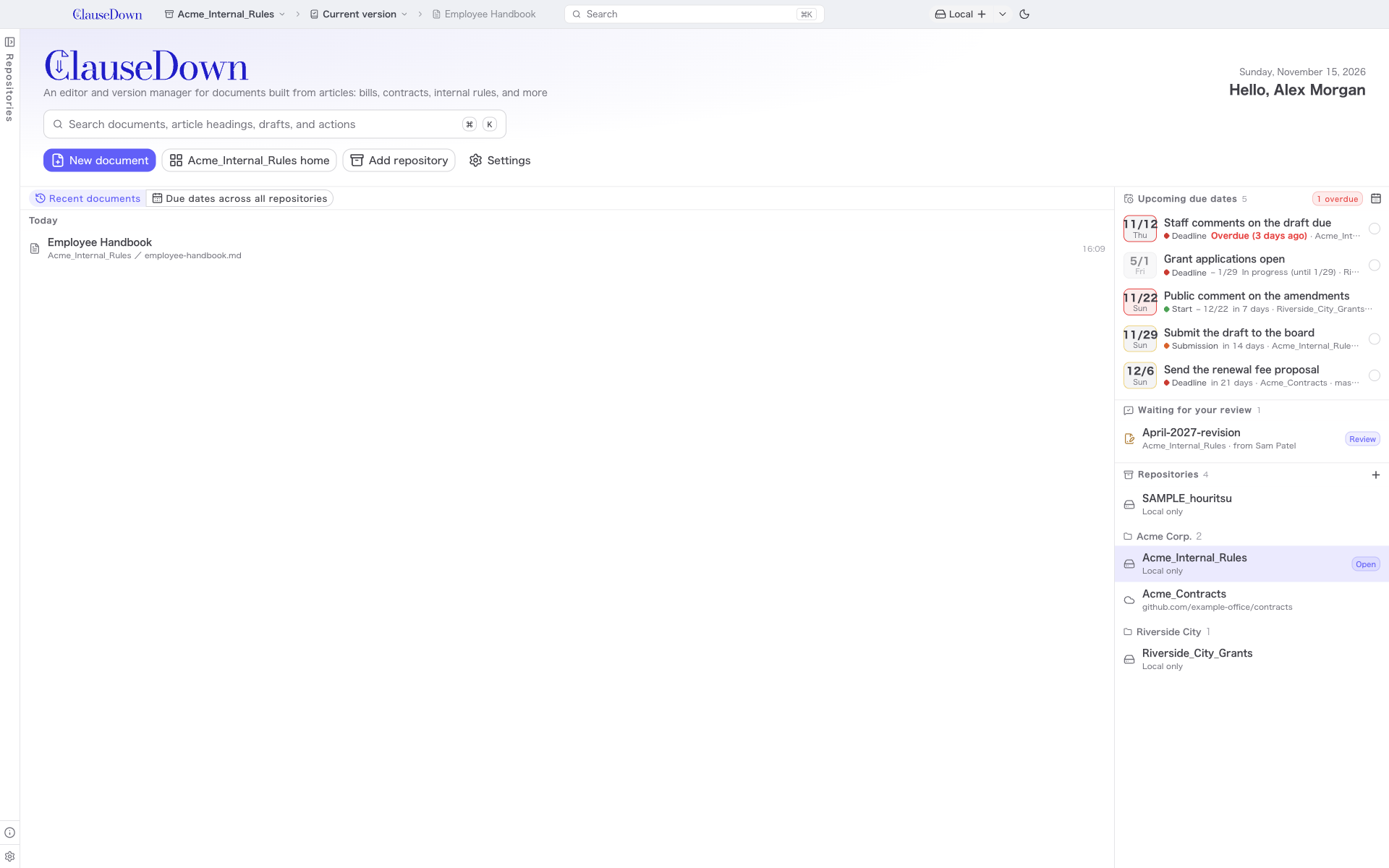
The screen has three parts.
- Title bar (the strip at the top): From left to right: the logo (click it to return to Home), the current repository, what you are working on (the current version or a draft), the open document, the search box, the sync status, and the light/dark mode switch.
- Left pane: The list of repositories you have added. When the app starts, it is collapsed into a thin strip on the left edge; click the strip to open it. Click a name to switch to that repository. About ClauseDown and Settings are at the bottom.
- The large area on the right: The contents of the screen you have chosen.
The repository, working draft and document in the title bar show where you are.
- Click the repository name or the working draft, then choose Repository home from the menu to go to the repository home.
- While the repository home or Settings is open, the title bar keeps showing the last document you had open, dimmed. Click it to reopen that document on the same tab as before (Edit, Revision history and so on).
The lower half of Home shows Recent documents on the left and Upcoming due dates and Repositories on the right. If someone has asked you to review a draft, Waiting for your review also appears. Upcoming due dates lists overdue items and items within the next 90 days from all your repositories, with overdue items first. Click the circle on the right to mark a due date as done.
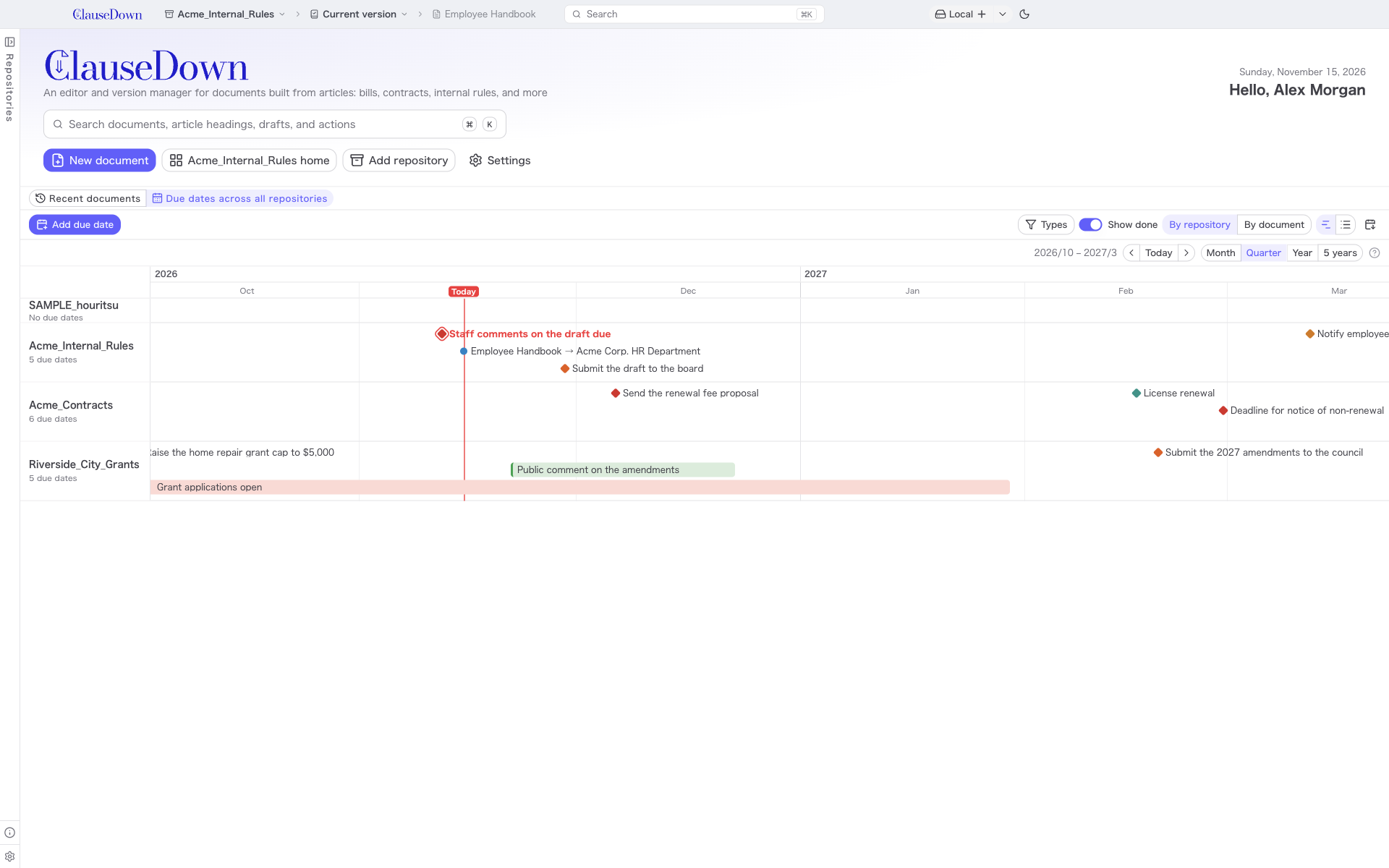
Switch the toggle at the top left to Due dates across all repositories to turn the lower half into a timeline that combines all repositories.
Finding documents, articles, drafts and actions by name
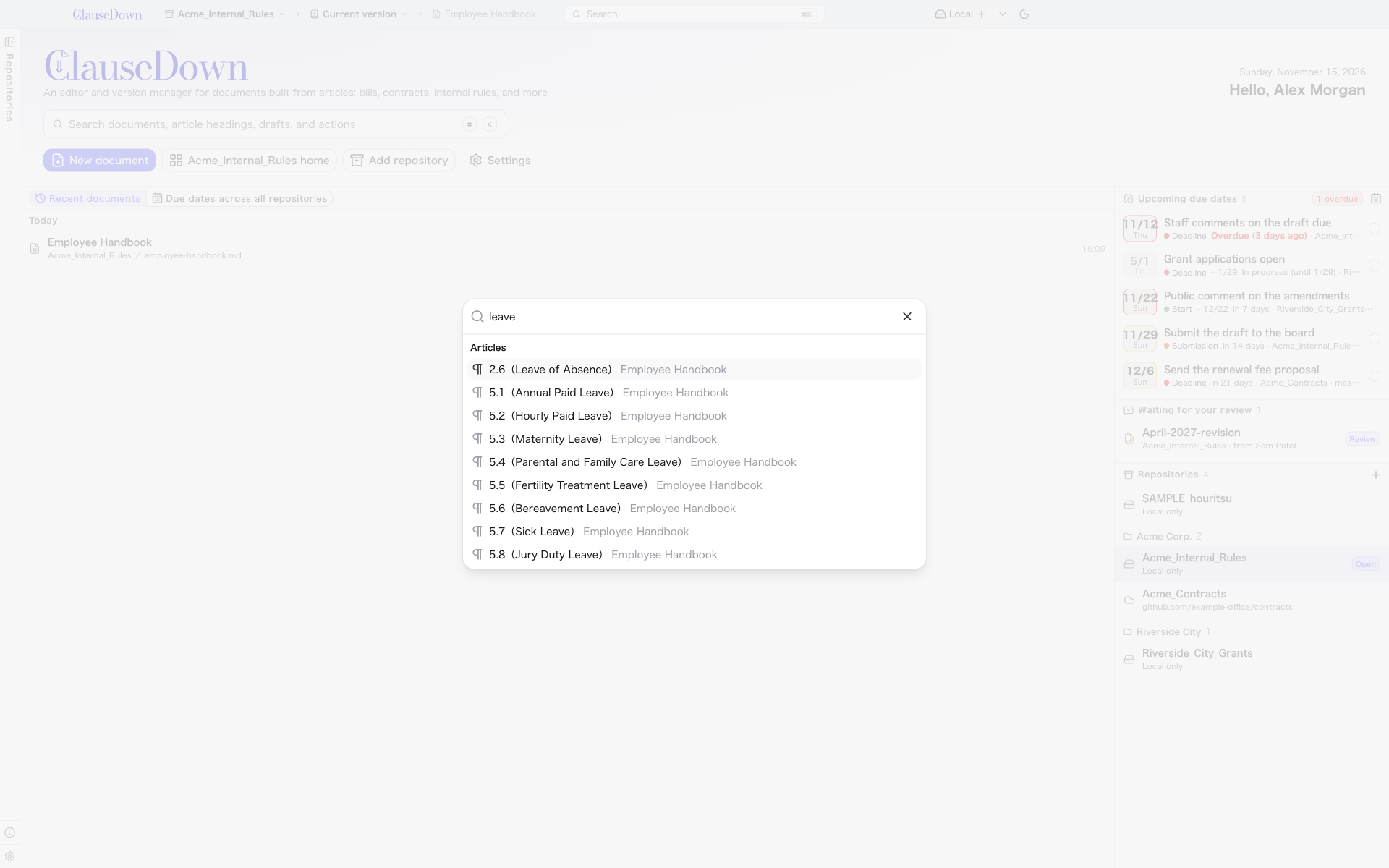
Click the search box in the title bar or press Ctrl+K to open the search window. It also opens while you are typing in the editor. As you type, it shows documents, articles, drafts and actions (such as New document or Settings) whose names match. Select one and press Enter to open that document or draft.
Articles are searched by heading and number across all documents in the repository. For example, type a heading word or an article number such as "第10条". Full-width and half-width digits both work. When you select an article, the document opens at that article.