Chapter 17
Settings
There are two kinds of settings: settings for the whole app on your computer, and settings for each repository.
When Settings is open, Settings in the left pane changes to Close settings. Click it to return to the screen you were on before (such as the document you were editing). You can also go back with the Back to (document name) button at the top left of the Settings screen. The repository settings and About ClauseDown have the same back button.
App-wide settings
Open these with Settings at the bottom of the left pane. They are saved only on your computer and do not affect anyone else.
| Section | Main options |
|---|---|
| Profile | How the name recorded on versions and review requests is chosen, and the name and email (git: user.name, user.email) |
| Appearance | Display language, light or dark mode, zoom, and whether to reopen the last document on startup |
| Editor | Editor font, font size, line numbers, line wrapping, bracket pair guides, number display, spelling and proofreading |
| Sync | Sync on startup, push when saving a version |
| Due dates | Desktop notifications |
| Export | Default folder for exported files, whether to add the date to file names |
| Digital signatures | Signing keys for versions and approvals, PDF signing certificates and timestamps, seals and signature images (chapter 19) |
| Print, PDF and Word formatting | Defaults for body font, font size, line spacing, margins and page numbers |
| GitHub/GitLab | Signing in to remotes (chapter 14) |
| AI | AI provider (chapter 16) |
| Repositories | Adding, switching, duplicating, forking and removing repositories (chapter 3) |
| Developer | Adding sample repositories, typesetting CSS, resetting settings |
Profile
Under Name from, choose where the name recorded as the person who saved a version comes from.
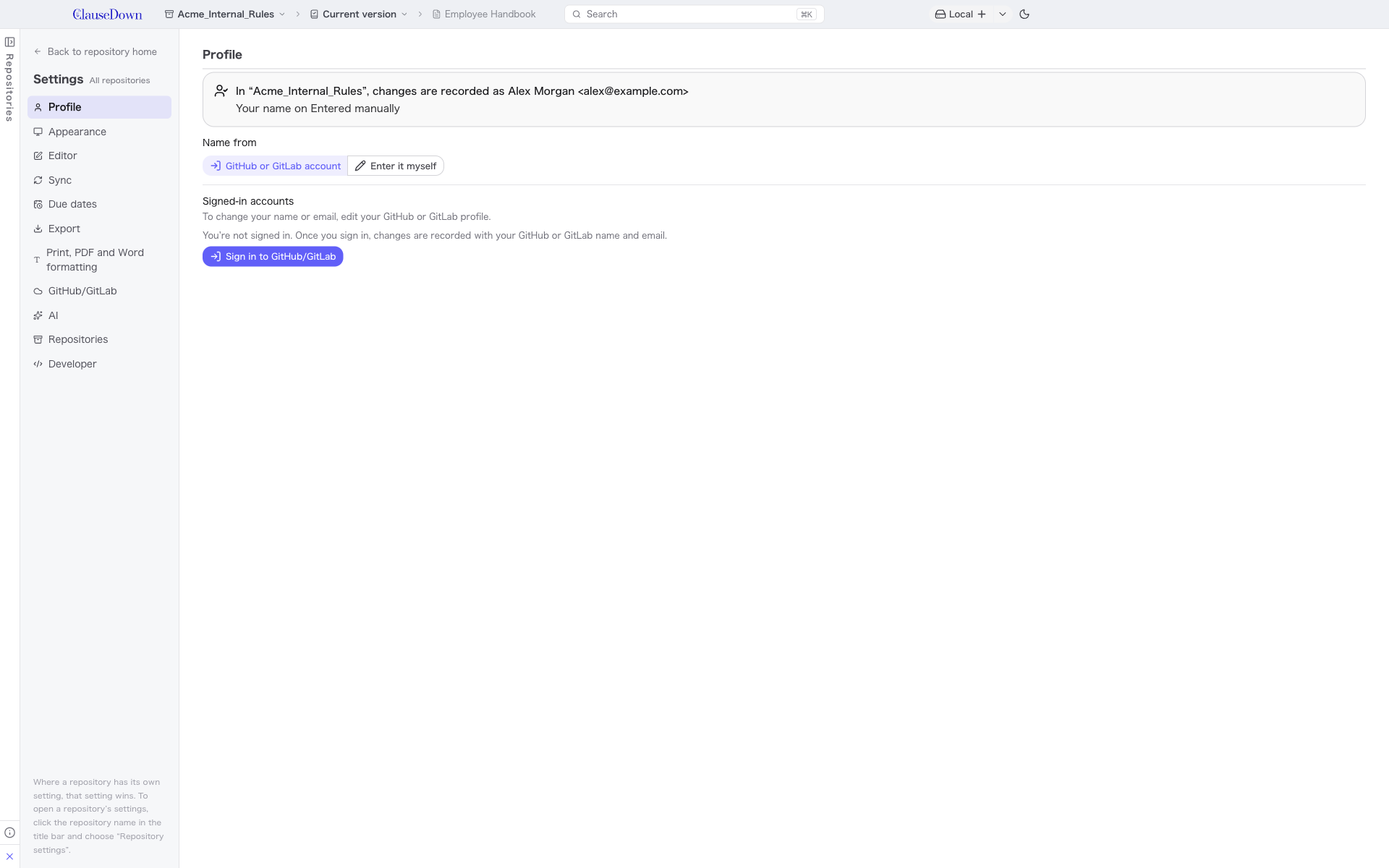
- GitHub or GitLab account: Uses the name and email of the account you signed in with. In repositories whose remote is on GitHub or GitLab, that account's name is used, so names match the remote's history. If you are signed in to two or more accounts, you can choose the account to use for repositories without a remote.
- Enter it myself: Uses the name and email you enter in every repository. If you leave the name blank, the name of a signed-in account is used.
You cannot save versions until a name is set.
Developer
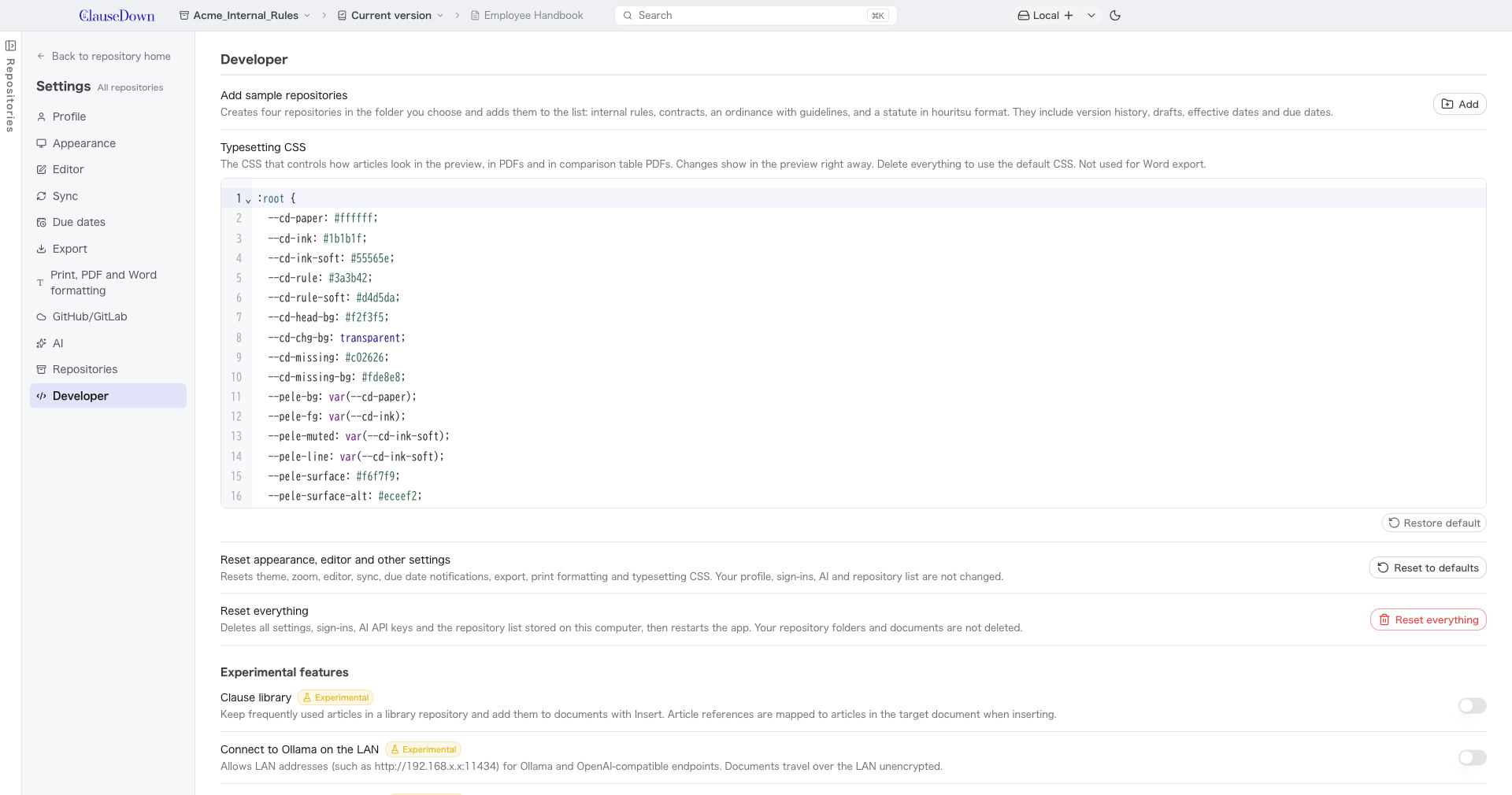
- Add sample repositories: Creates the samples from chapter 3 in the folder you choose. If a folder with the same name exists, a number such as (2) is added to the name.
- Typesetting CSS: The CSS that controls how the text looks in the preview and in PDFs (including comparison table PDFs). The field starts with the default CSS, which you edit. Changes appear in the preview immediately. You can find class names such as articles (
.cd-article), article headings (.cd-art-title), paragraphs (.cd-para) and items (.cd-item) in the default CSS in the field. Restore default returns to the default CSS. It is not used for Word export. - Reset appearance, editor and other settings: Returns the theme, zoom, editor, sync, due date notifications, export, print formatting and typesetting CSS to their initial state. Your profile, sign-ins, AI settings and repository list are not changed.
- Reset everything: Deletes all settings, sign-ins, AI API keys and the repository list saved on your computer, and restarts the app. Repository folders and documents are not deleted. Permissions granted on GitHub and GitLab remain; to remove them completely, revoke them on each site.
- Experimental features: Turn on features that are not finalized yet to try them. Their names and behavior may change, or they may be removed.
- Clause library: Keep frequently used clauses (confidentiality, exclusion of organized crime groups and so on) in a library repository, and insert them into documents with Insert → From clause library… in the editor. After turning it on, choose the repository that holds the clauses under Library repository. Library documents are written, saved as versions and synced like any other document. When you choose a clause, it is inserted after the article with the cursor. If the clause contains references to other articles (such as
[[purpose]]), a screen asks which article in the target document each one should point to. Articles with the same heading are preselected. If there is no matching article, you can either remove the reference and keep the heading text, or leave it as is. - Connect to Ollama on the LAN: Allows LAN http addresses (such as
http://192.168.x.x:11434) for Ollama and OpenAI-compatible endpoints (chapter 16). - Export to Markdown (houritsu): Adds Export as Markdown (houritsu) to the editor's Export menu (chapter 15). Because houritsu is a format meant to be used together with a Git version history, exporting a single document has limited use.
- Clause library: Keep frequently used clauses (confidentiality, exclusion of organized crime groups and so on) in a library repository, and insert them into documents with Insert → From clause library… in the editor. After turning it on, choose the repository that holds the clauses under Library repository. Library documents are written, saved as versions and synced like any other document. When you choose a clause, it is inserted after the article with the cursor. If the clause contains references to other articles (such as
Repository settings
Open these by choosing Repository settings from the repository name in the title bar, or with the settings button in the repository home. Except for the display name, they are recorded in the repository and shared with everyone who uses it.
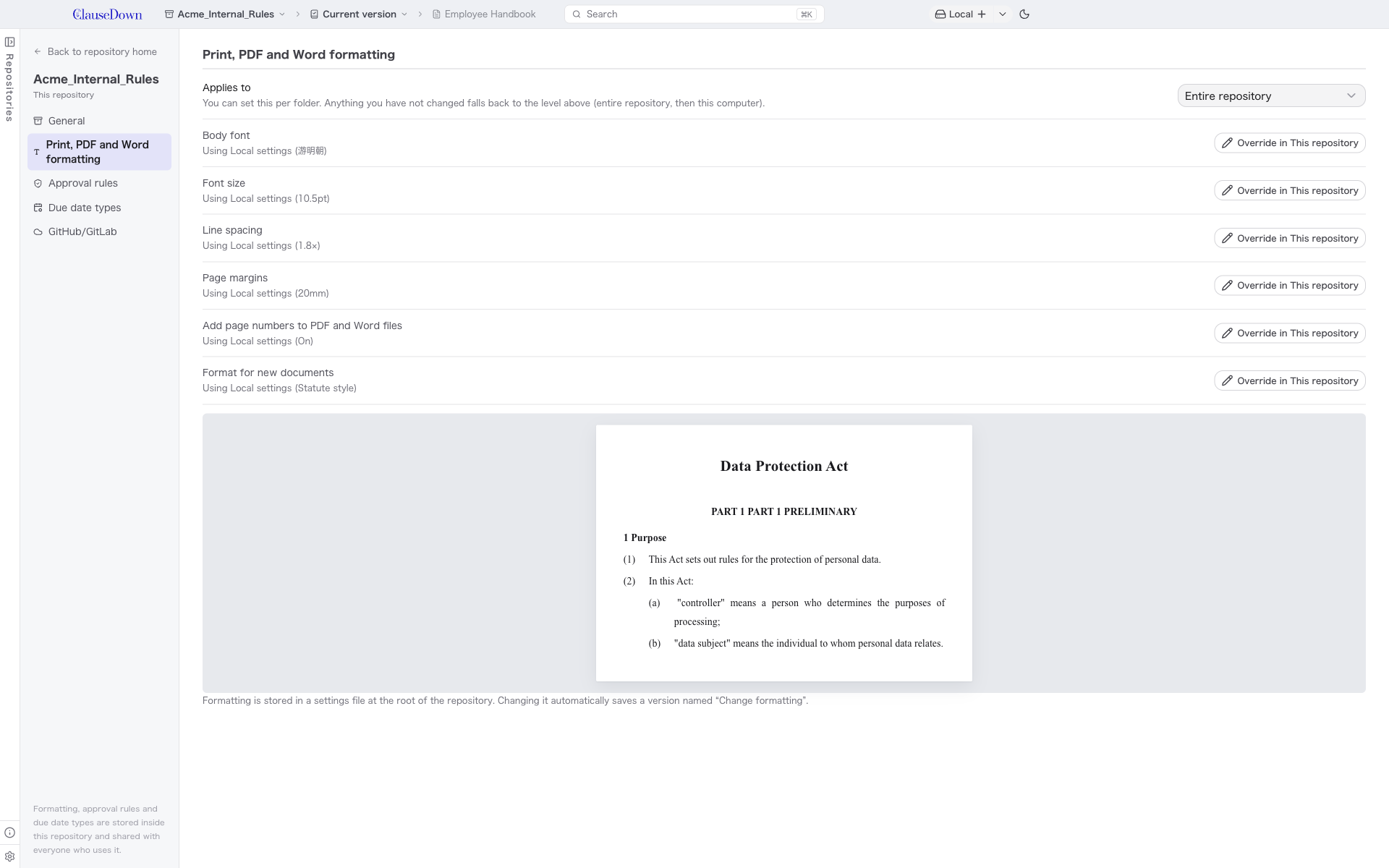
Print, PDF and Word formatting: For the whole repository or for each folder, override the font, font size and so on from the app-wide settings. Options you do not change use the setting one level up (the whole-repository setting for a folder, and your computer's settings for the whole repository). A sample printed with the chosen formatting is shown below.
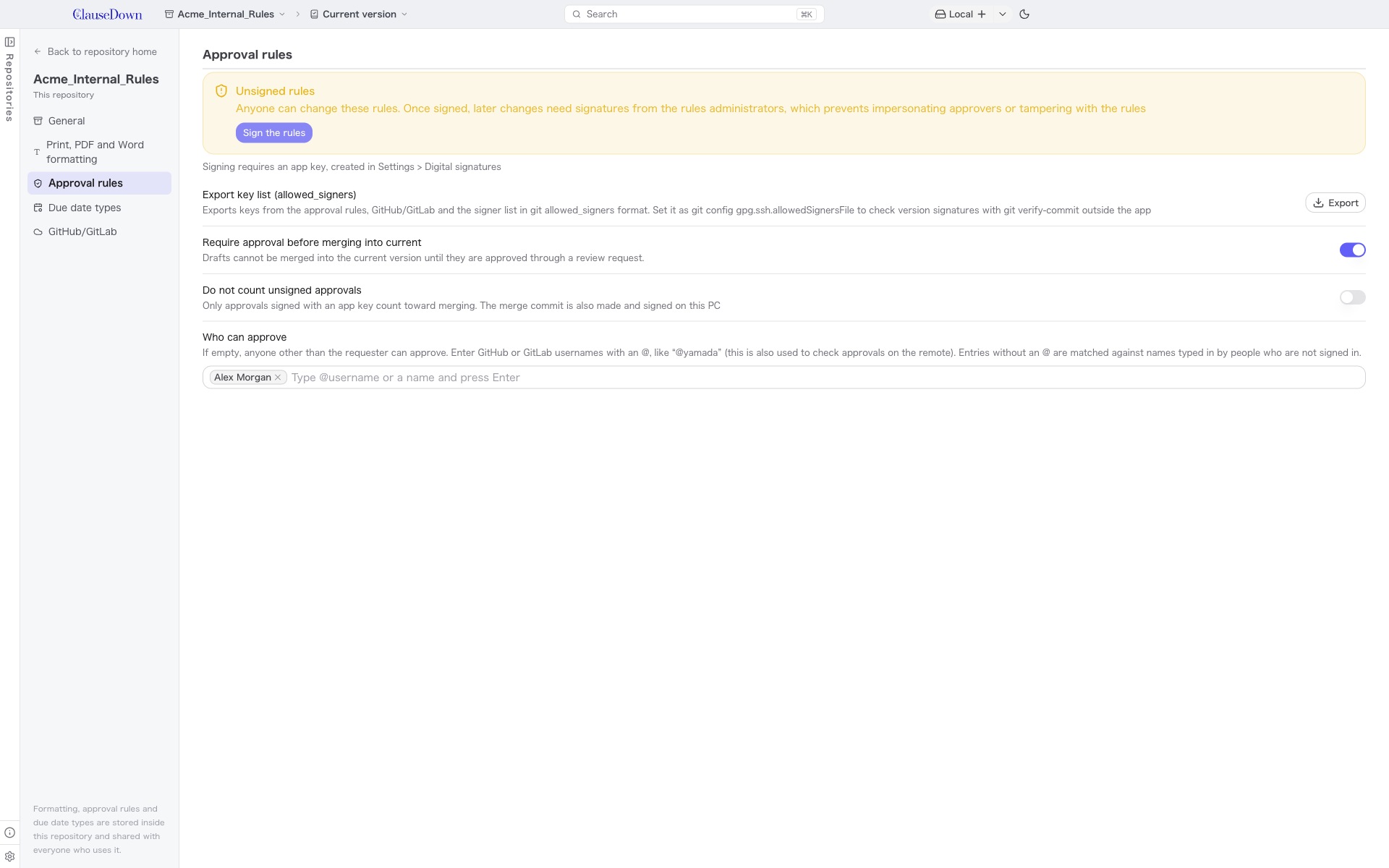
Approval rules: Turn on Require approval before merging into current to prevent unapproved drafts from being merged into the current version. Enter names under Who can approve to count approvals only from those people. Use the name from each person's Profile, or their GitHub or GitLab username.
For the number of approvals required, how unsigned approvals are treated, signing the rules and exporting the key list, see chapter 19.
Due date types: See chapter 13.
Dark mode
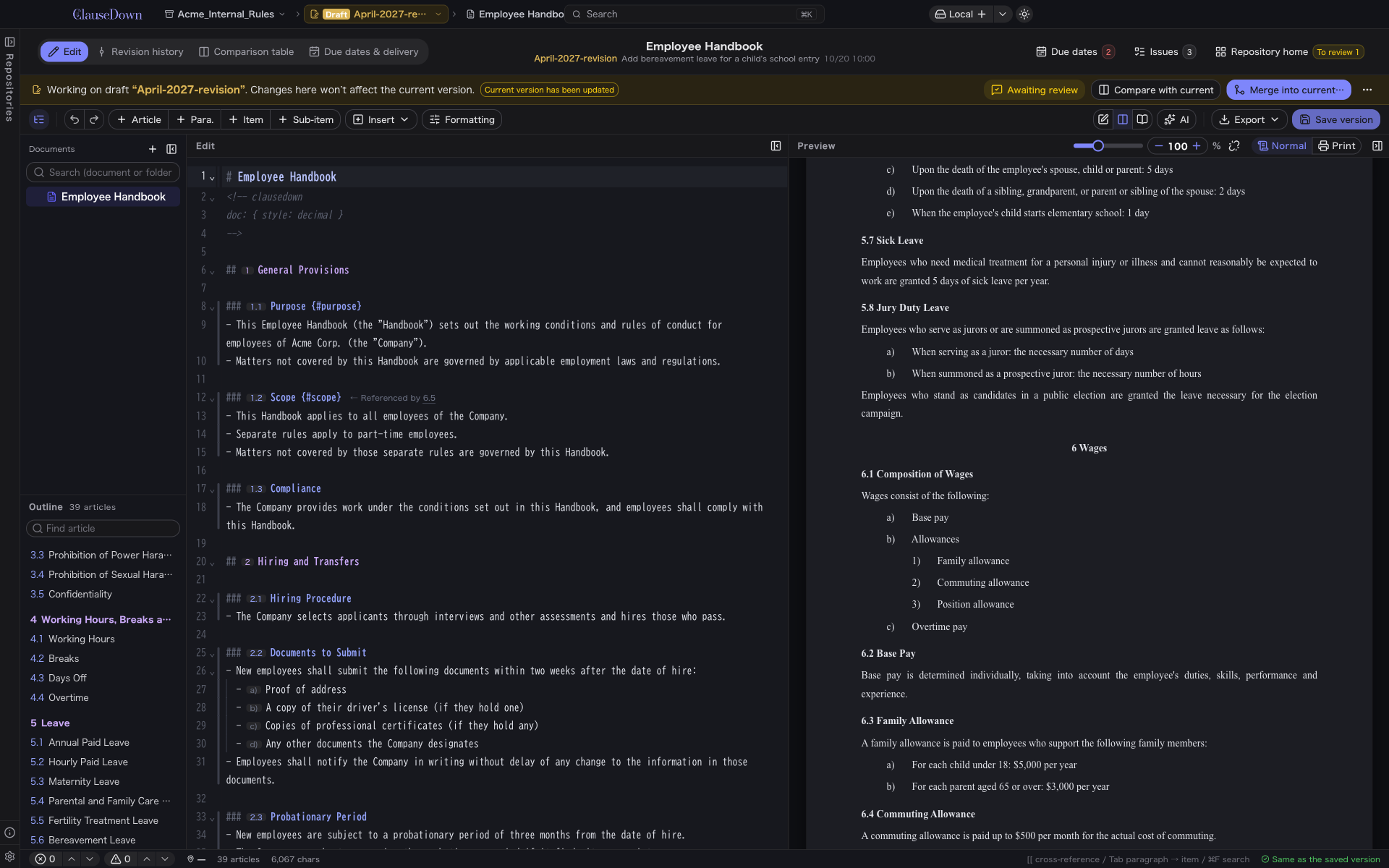
Use the button at the right end of the title bar to switch between light and dark mode.
Updating the app
Open About ClauseDown at the bottom of the left pane and click Check for updates.
- If a new version is available, its version number and changes are shown. Click Download.
- When the download finishes, the button changes to Restart to update. Click it to close the app, install the new version and restart. Any document you are in the middle of writing is saved to your computer before the app closes.
The app never installs a new version on its own. If you close the app without clicking Restart to update, you keep using the current version.
How updating works depends on how you installed the app.
| Installed with | How to update |
|---|---|
| Windows (download, PowerShell, winget) | Update inside the app as described above. You can also update with winget upgrade ShiozakiShota.ClauseDown |
| macOS (Homebrew) | Click Update → Restart to update to close the app, replace it with the new version through Homebrew and restart. If this fails, the next time you start the app it shows the reason and the command to run by hand |
| macOS (download, Terminal command) | Install the new version from Open download page. You can also update by running the Terminal command again |