Chapter 4
Repository home: documents and drafts at a glance
When you choose a repository, its repository home opens. This screen shows the repository's documents, drafts, due dates, validity periods and deliveries together. You can browse documents folder by folder, just as in Windows Explorer or the macOS Finder.
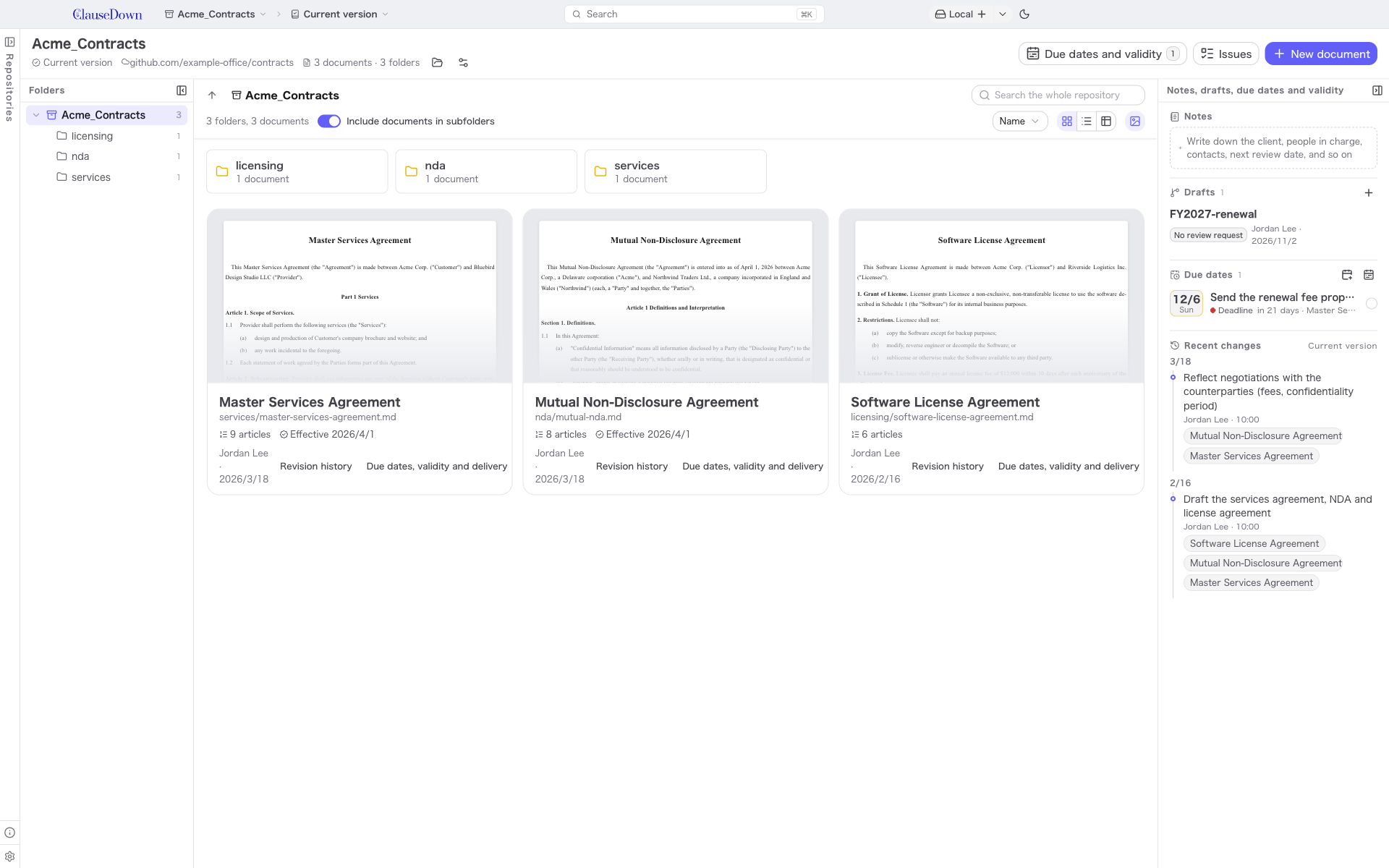
- Top row: Below the repository name you see the working draft, whether there is a remote (Local only if not), and the number of documents and folders. The buttons to the right open the repository folder and the repository settings. Due dates and validity and Issues at the top right open the due dates screen and the issues screen. The Issues button shows the number of open issues. New document at the far right creates a document in the folder that is currently open.
- Folders on the left: The repository's folders as a tree. Click a name to open that folder; click the arrow to its left to expand or collapse it. The number on the right is the number of documents inside.
- Center: The contents of the folder that is currently open.
- Right pane: From the top: Notes (a place to write down the client, the person in charge, the next scheduled review and so on), Drafts, Due dates and Recent changes. Each draft shows its review status (Awaiting review, Approved or No review request).
Drag the borders to change the width of the left and right panes. You can also collapse a pane with the button at its top right.
Browsing folders
The top of the center area shows where you are, for example "SAMPLE_houritsu_法令 › laws › act". Click a name to go back to that level, or click the up arrow on the left to go up one level.
Folders are listed first in the center, followed by documents. Click a folder to open it. Turn on Include documents in subfolders to also list documents in lower levels. This is useful for getting an overview of documents in deep folders without opening each one.
Type in the search box at the top right to search the whole repository, regardless of the current folder, for documents and folders whose name or path matches.
Changing the view
Use the buttons at the top right to choose one of three views.
| View | Contents |
|---|---|
| Cards | For each document: a thumbnail of the first page, the number of articles, the effective date of the version in force, and who saved it last and when. Click the image button to hide the thumbnails |
| List | Only the document name and file name. Use this to scan many documents |
| Details | A table with the name, number of articles, version in effect, next effective date, last update and status. Click a column heading to sort by that column; click it again to reverse the order |
In the Cards and List views, choose the sort order in the box at the top right (Name, Most articles, Latest effective date, Next effective date or Recently updated). Your chosen view and sort order are kept the next time you open the screen.
Click a document name to open it in the editor. Click Revision history or Due dates, validity and delivery on a card to open that screen.
Right-click and drag actions
Right-click a document to choose from these actions.
- Open, Revision history, Due dates, validity and delivery
- Copy, Move to folder, Copy to another repository
- Show in Explorer (Show in Finder on a Mac)
- Delete
Right-click a folder to choose Open or New document here. Right-click an empty area to choose New document.
Drag a document onto a folder (a folder in the center, a folder in the tree on the left, or a name in the location path at the top) to move it there. A confirmation screen appears before the move. The move is recorded as a version.