Chapter 7
Saving a version
At a good stopping point, click Save version at the top right, or press Ctrl+S in the editor. If nothing has changed since the last version, the button is disabled, and Ctrl+S tells you nothing has changed.
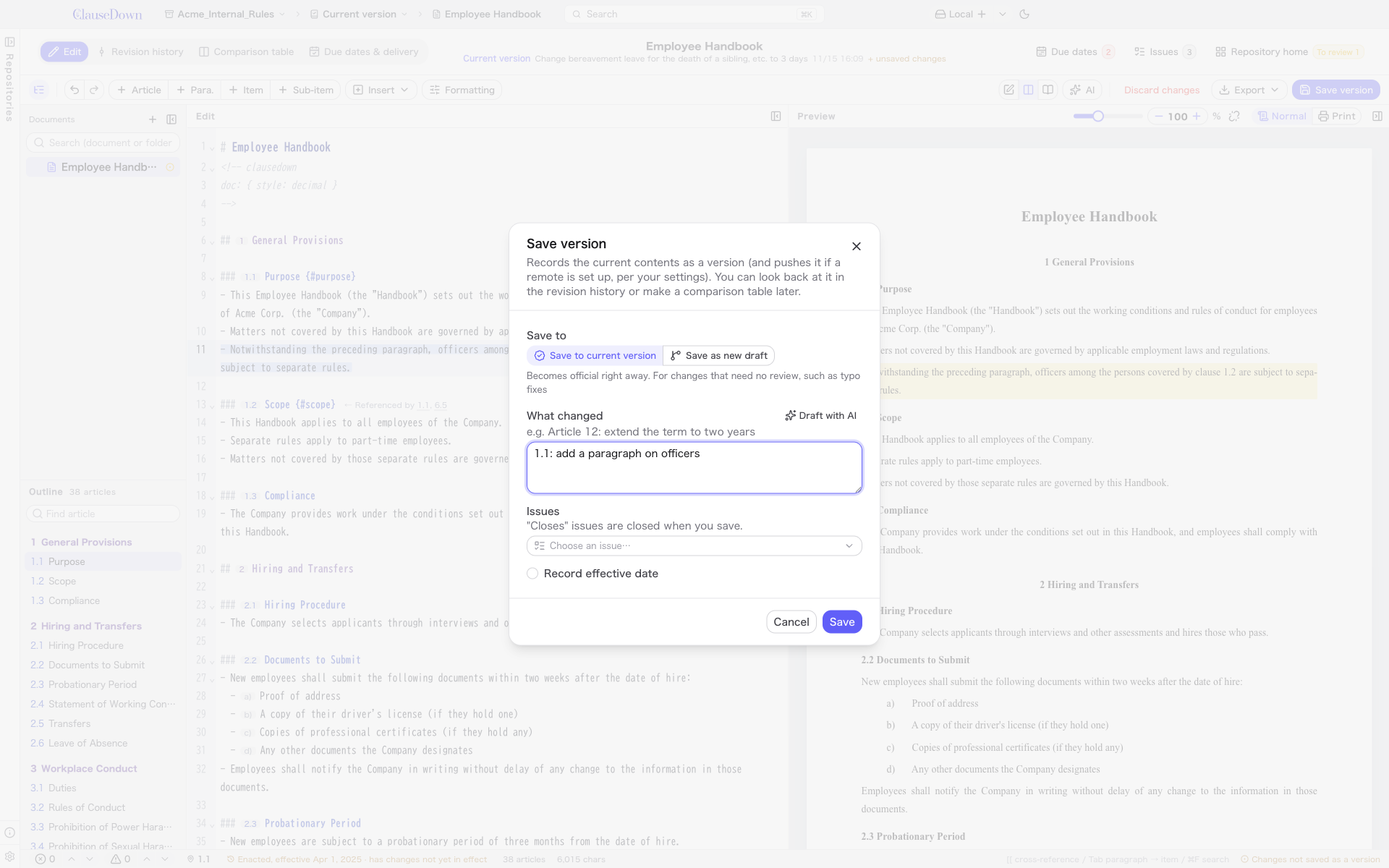
- Choose Save to.
- Save to current version: Becomes an official version immediately. Use this for changes that need no review, such as fixing typos.
- Save as new draft: Moves your changes into a draft and saves them there. The current version does not change. Use this for changes you want someone else to review (chapter 10).
- Under What changed, describe the change in one line, for example "Article 12: extend the term to two years". This text appears in the revision history list, so write it in a way that is easy to find later.
- If AI is set up (chapter 16), a Draft with AI button appears above the field. Click it to have the AI read the changes since the last version and fill in a description. Check the text before you save; do not use it as is without reading it.
- If the version is to take effect on a known date, turn on Record effective date and enter the date.
- Click Save.
If there is a remote and Push when saving a version is on under Sync in Settings, the saved version is pushed to the remote right away.
When the document is not yet in the current version (a new document, or the first document saved in a repository), the dialog opens with Save as draft selected and the draft name set to "Create (document name)". Save your work in progress at each milestone, and when it is complete and reviewed, use Merge into current (chapter 10). Until then, it does not enter the current version. If the content is already final, choose Save to current version to make it an official version right away.