Chapter 9
Creating a comparison table
Click the Comparison table tab to build a table that sets two versions side by side, article by article. (In Japan, a comparison table of old and new text, 新旧対照表, is the standard way to present amendments.)
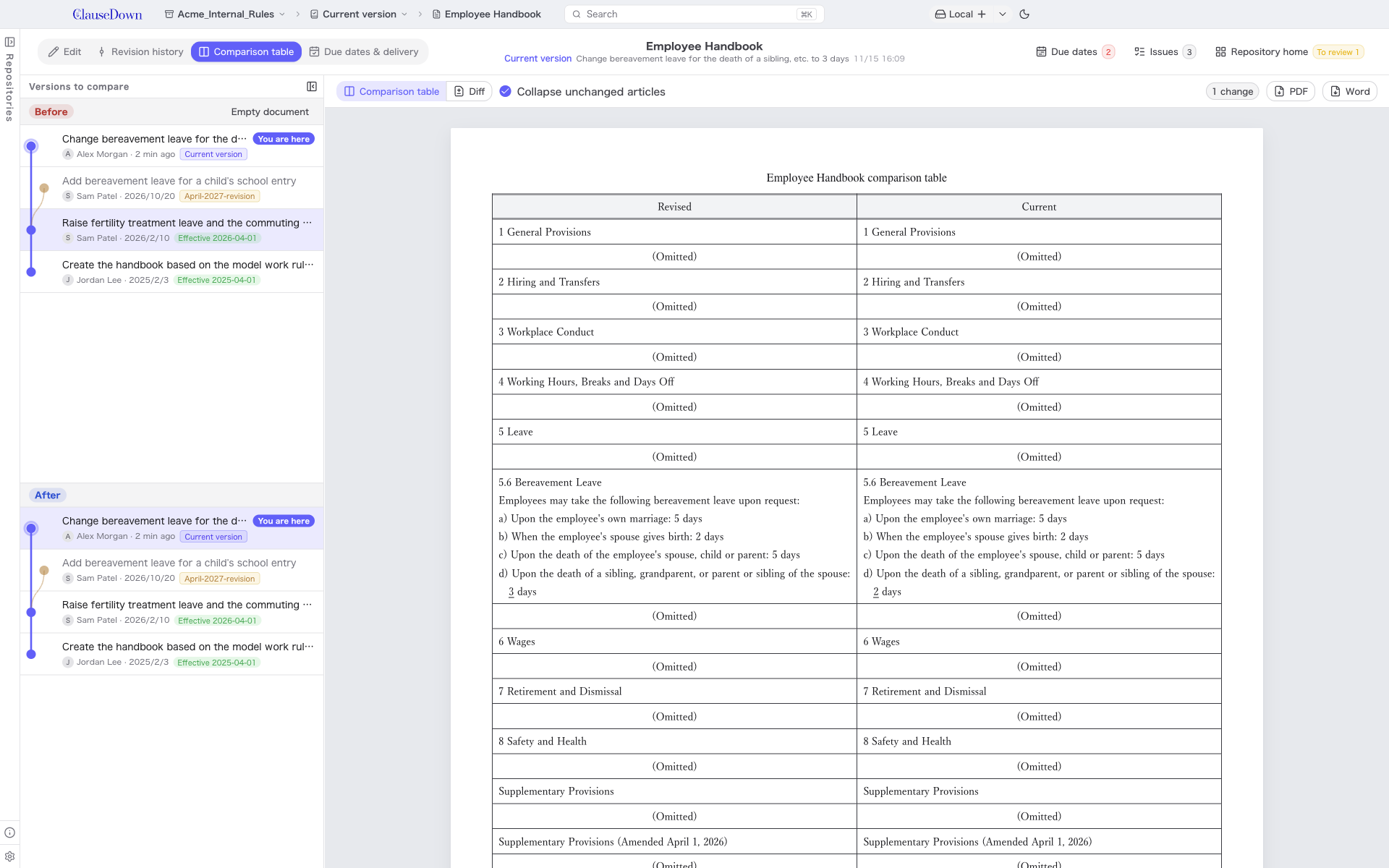
The Versions to compare pane on the left is split into upper and lower halves: choose the version before the change in the upper half and the version after the change in the lower half. Both are lists of this document's versions, the same as in the revision history, so you can see each version's description, who saved it, the date and any effective date marks while choosing.
- In the Before list at the top, click the version to compare from. To compare with nothing, click Empty document to the right of the heading.
- In the After list at the bottom, click the version to compare to. If you have unsaved changes, choose Unsaved changes at the top of the list to include them in the table.
- Changed text is underlined. Turn on Collapse unchanged articles to replace unchanged articles with "(略)" ("(Omitted)").
- The number of changes is shown at the top right. Click PDF or Word to export the table in the format currently shown.
For documents in an overseas format, the table is shown in the Diff format from the start, and the table headings and the omitted-text placeholder are written in the document's language (in English, "Revised / Current" and "(Omitted)"; German and French documents use German and French words).
When the screen opens, Before is set to the latest effective version (the current version if you are working in a draft, or the previous version if there are no effective versions), and After is set to the current document. If you opened it with Compare with previous or Compare with current document in the revision history, those two versions are selected.
Use the switch on the toolbar to choose the display format.
- Comparison table: A table with the revised text and the current text side by side. PDF and Word are exported in landscape.
- Diff: The text in document order, with deleted text in red strikethrough and added text in blue underline. You can follow each change within a single text. PDF and Word are exported in portrait, titled "(document name) changes".
Your chosen format is kept the next time you open the screen.
If you delete an article and add a different one, and the two have little in common, they are shown as two rows, "deleted" and "new", rather than as a change to one article.