Chapter 12
Managing issues
You can record things to do, such as "Review the holidays in Article 12", as issues. Each issue gets a number (#1, #2 …), and by linking issues to versions and drafts you can later see which version resolved them. Issues work the same way as GitHub and GitLab issues, and you can use them even if the repository is not connected to a remote.
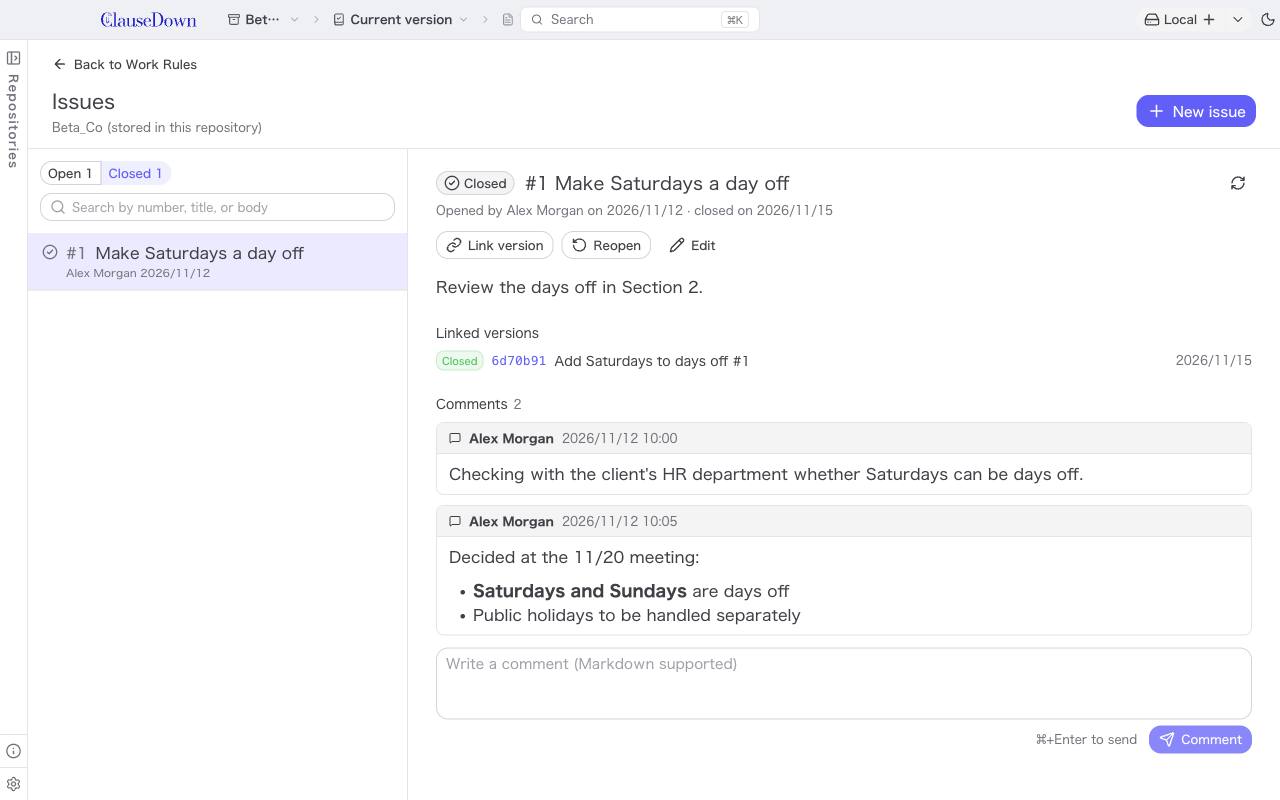
Open the issues screen with Issues at the top right of the repository home, Issues at the top right while a document is open, Issues in the draft menu, or Issues in the search window (Ctrl+K). The button shows the number of open issues. Click ← Back to … at the top left to return to the screen you came from (a document or the repository home).
The list of issues is on the left; switch between Open and Closed. Click an issue to see its description and linked versions on the right.
Creating an issue
- Click New issue at the top right.
- Write a title and a description. You can use Markdown in the description.
- Click Create.
Right-click in the editor and choose Create issue for this article to open the form with the document name and article already filled in, for example "就業規則 第2条(休日)" ("Work rules, Article 2 (Holidays)").
Linking versions and issues
Choosing issues when you save a version
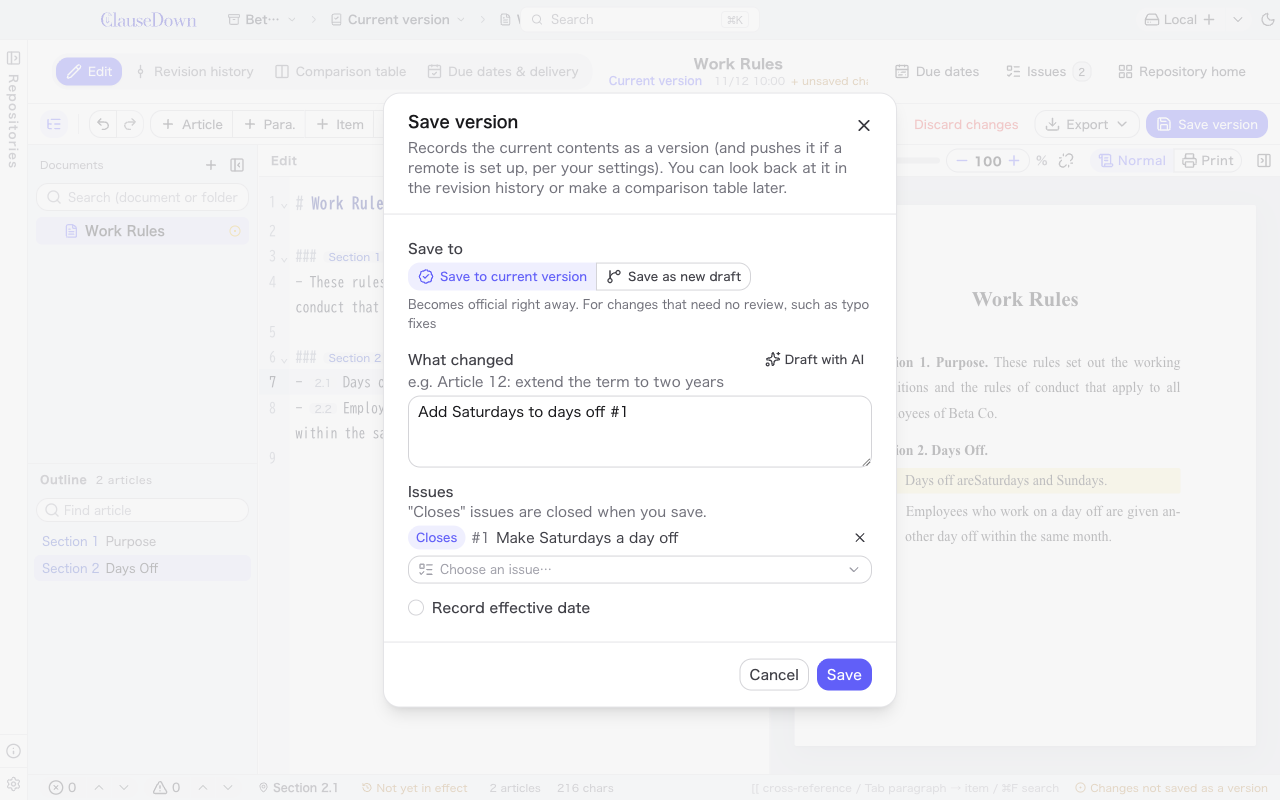
In the Issues field of the Save version dialog, choose open issues. Click the button to the left of a chosen issue to switch between the following.
- Closes: This version resolves the issue. A
Closes #1line is added at the end of the message and the issue is closed (see the next section for when). - Relates to: The version is kept as related to the issue. A
Refs #1line is added to the message and the issue stays open.
Writing the number in the message
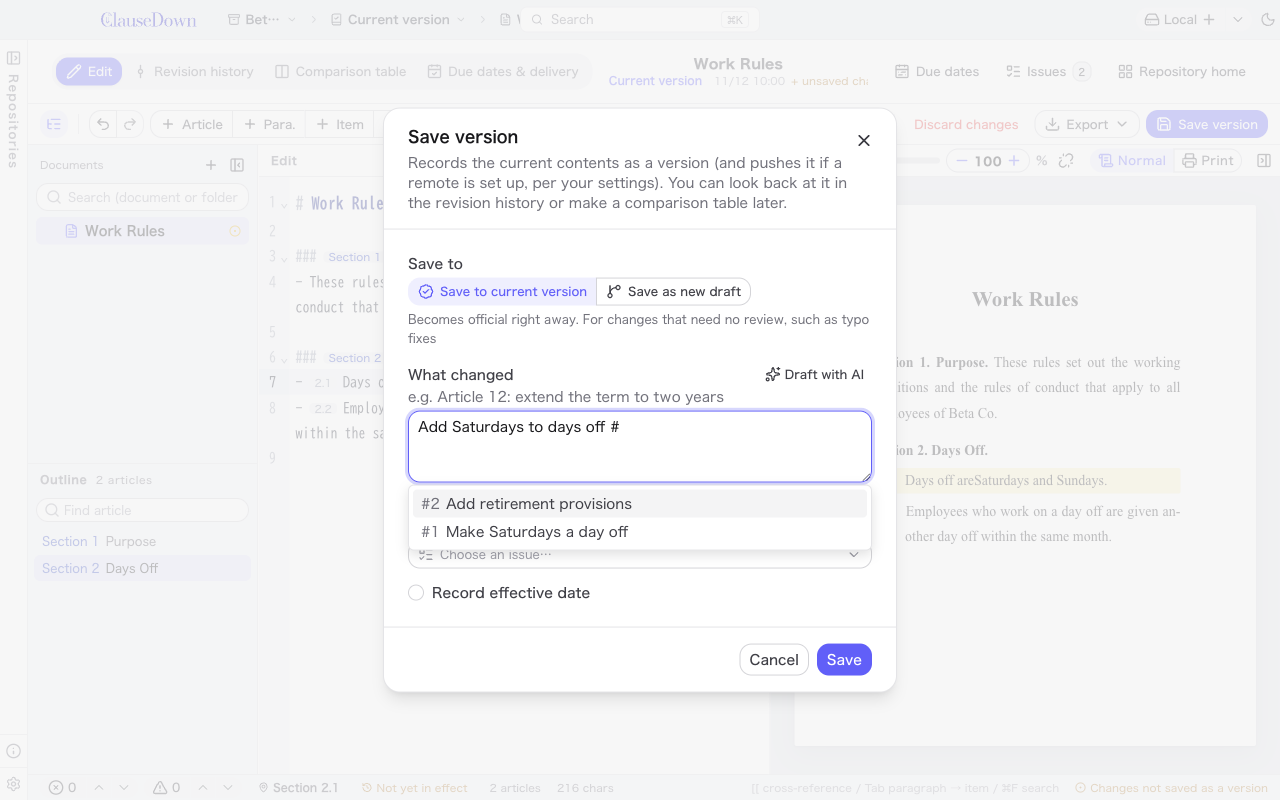
Type # in the What changed field to see a list of open issues. Choose one with ↑↓ and press Enter to insert its number. A version whose message contains #1 is linked to issue #1; a version whose message contains Closes #1, Fixes #1 or Resolves #1 resolves issue #1. (These keywords are the same ones GitHub and GitLab use.)
#1 in messages shown in the revision history, on Home and elsewhere opens the issue when clicked.
Linking a version after saving
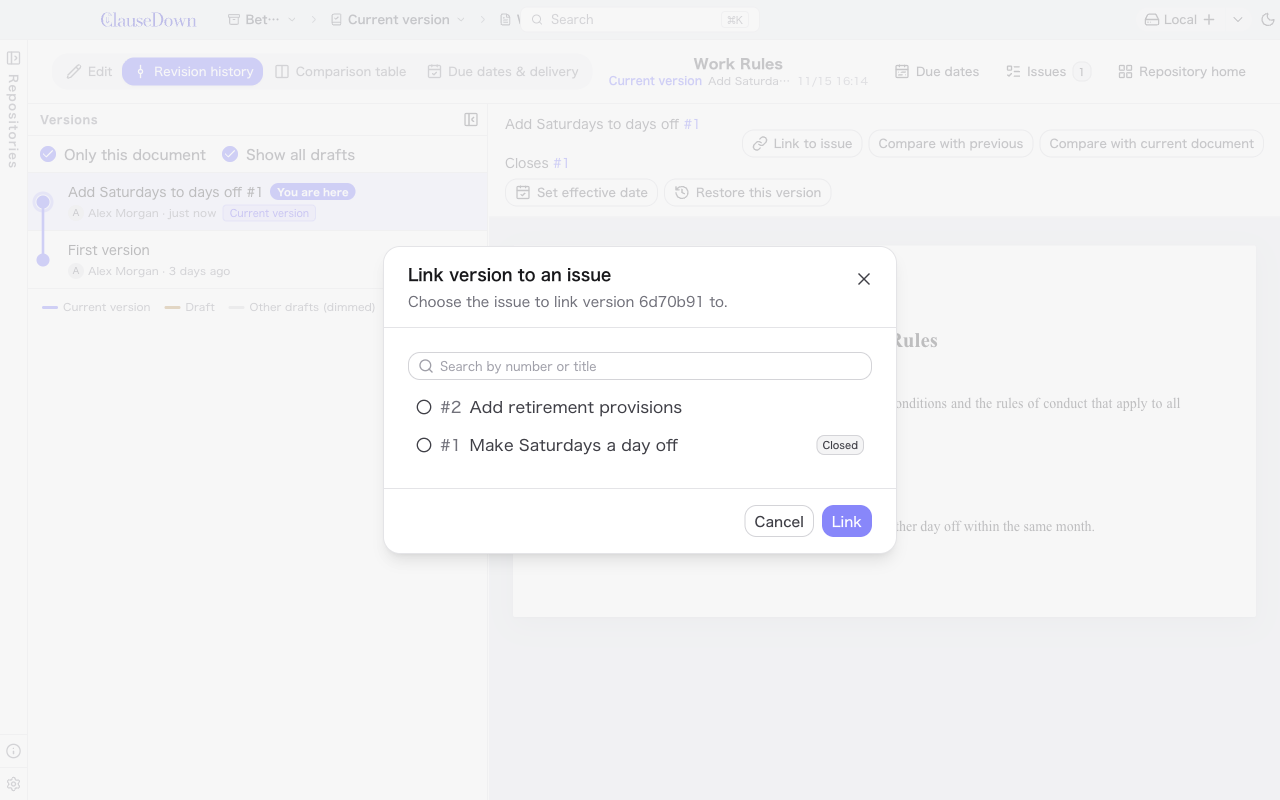
In the revision history, choose a version, click Link to issue at the top right and choose an issue. You can do the same with Link version on the issues screen.
Linking a whole draft
While working in a draft, choose issues with Issues resolved by this draft… in the draft menu. The chosen issues are closed when the draft is merged into the current version.
Closing an issue
An issue is closed when the version that resolves it enters the current version.
- When you save a
Closes #1version to the current version: it closes immediately. - When you save a
Closes #1version to a draft: it does not close yet. It closes when the draft is merged into the current version. - Issues linked through the draft menu: they close when the draft is merged into the current version.
To close an issue by hand, click Close on the issues screen. You can choose the version that resolved it (or close it without choosing one). Click Reopen to return a closed issue to open.
Discussing in comments
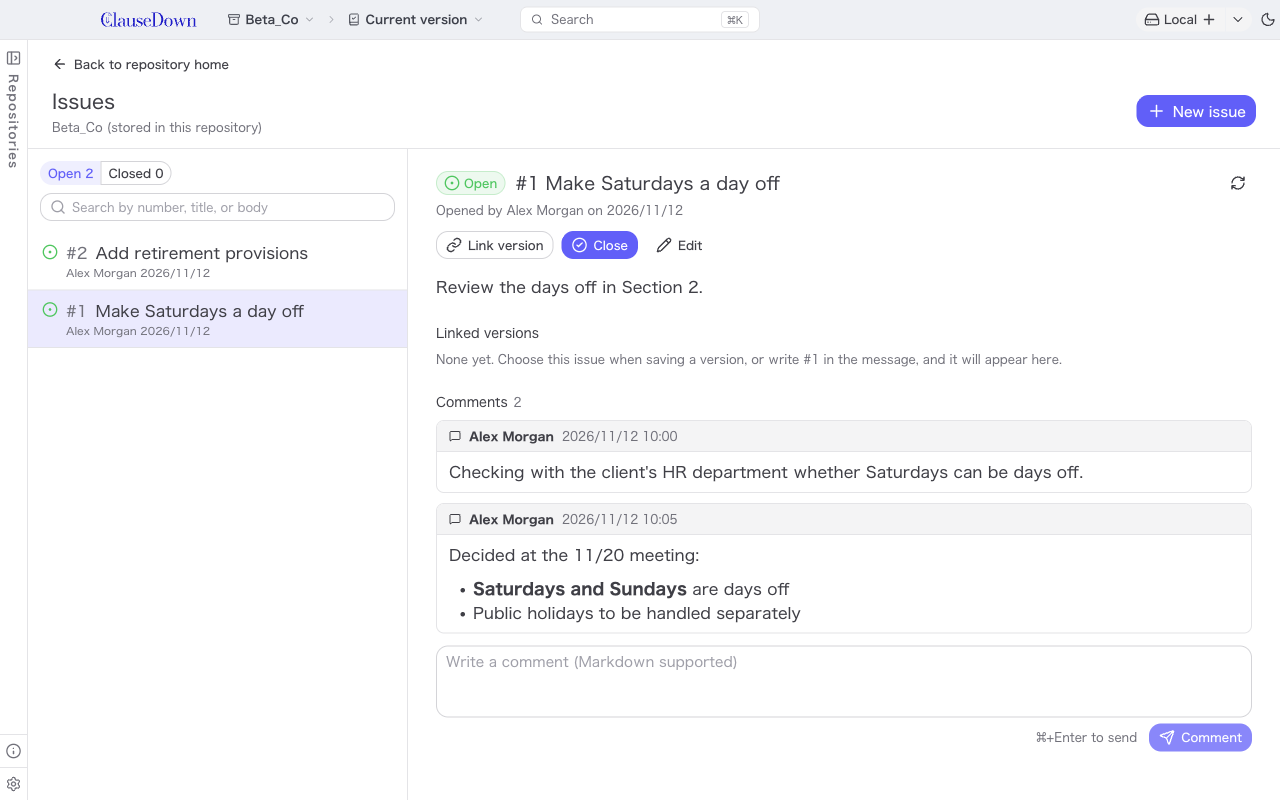
Write a comment in the field below the issue and click Comment to add it. You can also send it with Ctrl+Enter (⌘+Enter on a Mac). Recording progress such as "Checking with the other party" or "Decided at the Nov 20 meeting" lets you trace later why the text was written that way.
- You can use Markdown in comments (lists, bold, links and so on). Links open in your browser.
- Comments are listed oldest first, with the author and date and time.
- At present, you cannot edit or delete comments in the app.
Comments work in repositories without a remote too. They are saved in the repository's records, and after syncing they can be seen on other computers. If two computers add comments at the same time, both are kept.
When connected to GitHub or GitLab
When the remote is on GitHub or GitLab, issues are that site's issues. Issues created in the app appear on the site, and issues created on the site appear in the app. Click Open on GitHub (Open on GitLab for GitLab) to open the issue in your browser.
- Comments are the issue's comments. Comments written on the site appear when you open the issue. To see new comments while the issue is open, click the reload button at the top right. To edit or delete a comment, do it on the site.
- Linked versions are recorded on the site as an issue comment ("Linked version … (ClauseDown)"). In the app's comment list, these are shown as one-line records, separate from discussion comments.
- When a
Closes #1version enters the current version, the site closes the issue. - Issues linked to a draft are added to the description of the review request (pull request or merge request) as
Closes #1.
Moving issues created locally: Issues you created before connecting to a remote can be moved to the site from a prompt on the issues screen after you connect. Their comments move with them. Because the author on the site will be the account that connected, the original author and date are written at the top of each comment, for example "(Comment by Clerk A, 2026/11/12 14:03)". In a new, empty repository, the numbers stay the same (#1 stays #1). If the site already has issues or pull requests and the numbers shift, the original number is noted in the moved issue's description. #number references in the messages of past versions may point to a different issue on the site.
On GitHub, the ClauseDown GitHub App needs the Issues permission. If it lacks the permission, a message appears when you open an issue.