Chapter 16
Asking AI to check or rewrite
Click AI in the editor to open the AI panel on the right. You can ask for a legal check of the text, polishing of wording, fixing cross-references, an explanation of the changes and more.
The AI can only read documents, run mechanical checks and rewrite documents on your computer. Saving versions, merging into the current version, effective dates, delivery and review requests are done by people on screen. Changes made by the AI appear in the editor immediately. You can undo them with Ctrl+Z, Undo the AI changes or Discard changes. If you type in the editor while the AI is rewriting, changes in different places are both kept; if they are in the same place, what you typed in the editor is kept.
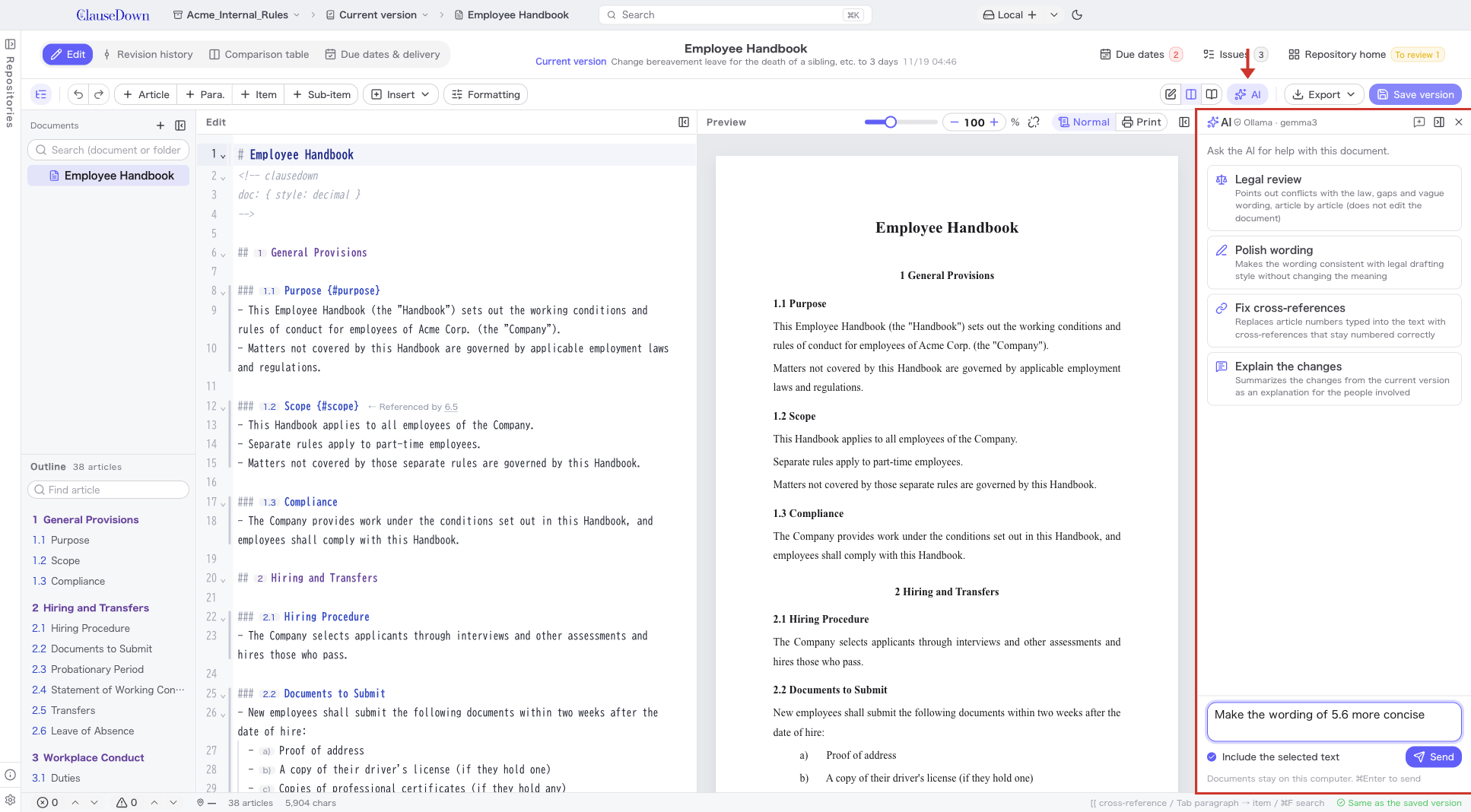
If the window is too narrow to show the editor, preview and AI panel side by side with a readable preview, the preview is collapsed into a thin strip at the right edge. Click the strip to collapse the AI panel and show the editor and preview side by side.
Before you start, choose a provider under AI in Settings.
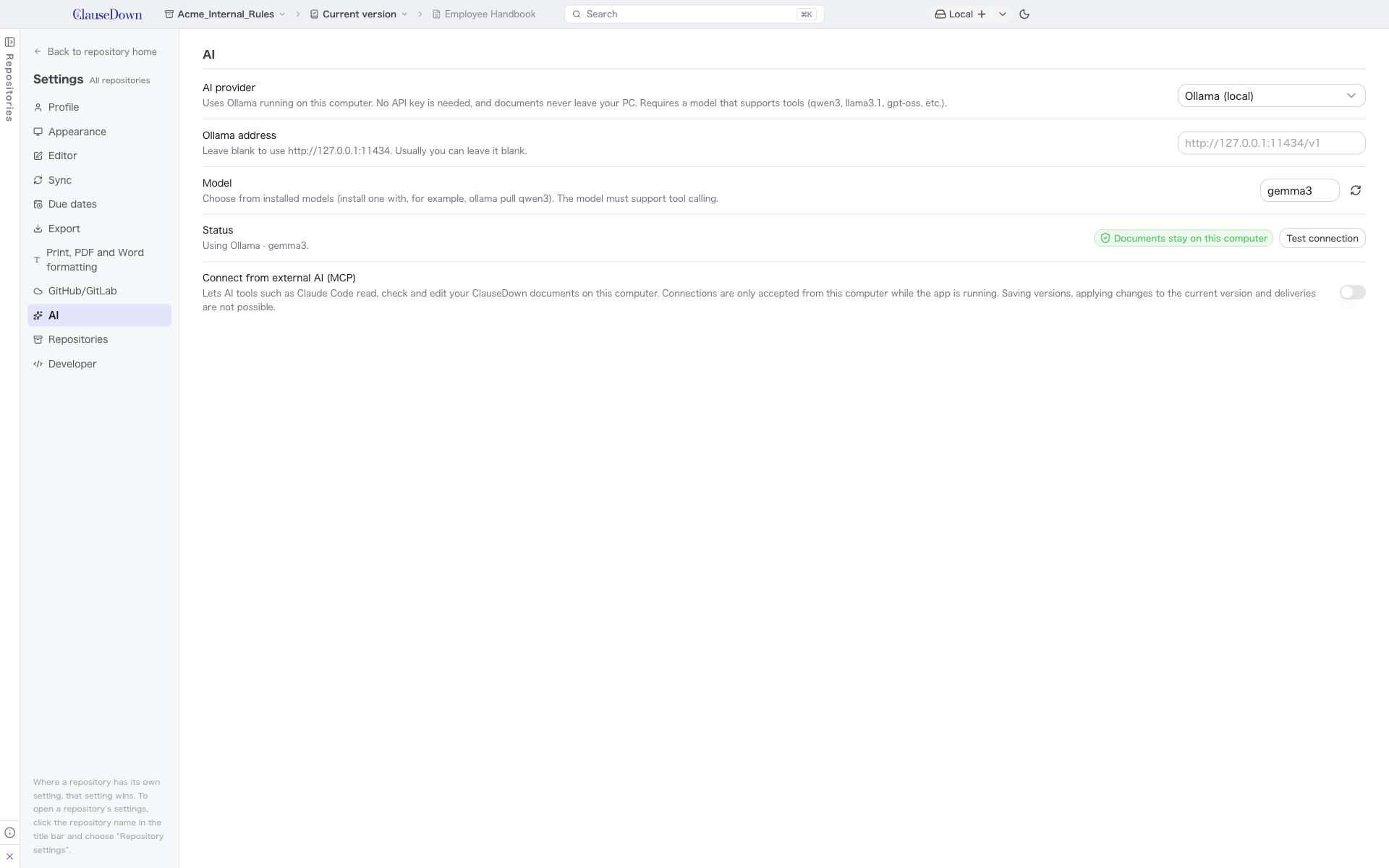
- Under AI provider, choose Claude (Anthropic), an OpenAI-compatible service, Ollama (AI that runs on your computer), OpenRouter or GitHub Models.
- Enter the API key the provider needs, or sign in. Click Test connection to check that it works.
- Your document's contents are sent to the AI company you chose. If you do not want documents to leave your computer, choose Ollama.
- To use Ollama running on a server on your company network, turn on Connect to Ollama on the LAN under Experimental features in Developer in Settings, and enter an address such as
http://192.168.x.x:11434/v1in Ollama address. The same applies to OpenAI-compatible endpoints (such as LM Studio). LAN addresses are private addresses (10.x.x.x, 172.16–31.x.x, 192.168.x.x) and names ending in.localand similar. Documents travel over the LAN unencrypted.
Using Claude Desktop or Claude Code
You can also read, check and rewrite ClauseDown documents from Claude Desktop (via MCP).
- Under AI in Settings, turn on Connect from external AI (MCP).
- Claude Desktop: Click Register under Claude Desktop and restart Claude Desktop. Ask in the chat, for example, "Look up the Ministry of Health, Labour and Welfare's model work rules online and write rules for a monthly variable working-hours system", and Claude answers and edits using your ClauseDown documents.
- Claude Code: Copy the command under Claude Code and run it in a terminal.
- It works only while ClauseDown is running. If ClauseDown is closed, Claude replies that ClauseDown is not running.
- It can do the same things as the AI panel in the editor. It cannot save versions, merge into the current version or deliver. Changes made by Claude appear in the editor immediately and can be undone with Ctrl+Z or Discard changes.
- If you move ClauseDown to another location, click Register again. When you no longer use it, click Unregister.